Sensory Aids for Persons With Visual Impairments
FUNDAMENTAL APPROACHES TO SENSORY AIDS
Augmentation of an Existing Pathway
Use of an Alternative Sensory Pathway
PRINCIPLES OF COMPUTER ADAPTATIONS FOR VISUAL IMPAIRMENTS
GUI Problems and the Blind Computer User
READING AIDS FOR PERSONS WITH VISUAL IMPAIRMENTS
Access to Visual Computer Displays for Individuals With Low Vision
Devices That Provide Automatic Reading of Text
Camera and Scanner Characteristics for Automatic Reading
Braille as a Tactile Reading Substitute
Portable Braille Note Takers and Personal Organizers
Speech as an Auditory Reading Substitute
Synthetic Speech Output Reading Machines
Access to Visual Computer Displays for Individuals Who Are Blind
Studies of Computer Use by Visually Impaired Adults
User Agents for Access to the Internet
Making Mainstream Technologies Accessible
MOBILITY AND ORIENTATION AIDS FOR PERSONS WITH VISUAL IMPAIRMENTS
Electronic Travel Aids for Orientation and Mobility
Global Positioning System–Based Navigation Aids for the Blind
On completing this chapter, you will be able to do the following:
1 Describe the major approaches to sensory substitution, including the advantages and disadvantages of each
2 Describe device use for reading and mobility by persons who have visual impairment
3 Describe how computer outputs are adapted for individuals with visual limitations
4 Describe the major approaches to Internet access for persons with visual impairments
When an individual has a sensory impairment, assistive technologies can provide assistance in the input of information. In this chapter, approaches that are used to either aid or replace seeing and hearing are emphasized. This includes sensory aids that are intended for general use and assistive technologies that are used specifically for providing visual access to computers. Assessment considerations for sensory function are described in Chapter 4. Patients with low vision were surveyed to determine their major needs for assistive devices (Stelmack et al, 2003). Sixty-three activities in the categories of travel, food and shopping, communications, household tasks, self-care, recreation and socialization, and contrast were included in the survey. The informants were 149 individuals in the age range of 51-96 years (mean 76 years). Two thirds were male. The survey consisted of asking participants whether they could perform the activity independently or if they used a low-vision device or whether they thought it was important to use a device to perform the activity independently. The highest-ranked items involved travel (finding a clear path, identify landmarks, recognize traffic signals, step off a curb), self-care (apply makeup, shave), reading (large print, sign checks, find food in kitchen), and recreation (see television, recognize persons close up); Stelmack et al (2003) provide detailed results. Assistive devices designed to meet the needs identified in the Stelmack survey are discussed in this chapter, beginning with the fundamental principles associated with sensory aids.
FUNDAMENTAL APPROACHES TO SENSORY AIDS
Chapters 2 and 3 describe the human component of the human activity assistive technology (HAAT) model in some detail. Two primary intrinsic enablers of the human in this model are sensing and perception. If there are impairments in either of these functions, it is necessary to use sensory aids. When sensory aids are designed or applied, the level of impairment becomes a critical issue. If there is sufficient residual function in the primary sensory system being aided, the input is augmented to make it useful to the person. For example, eyeglasses magnify (augment) the level of visual information. On the other hand, if there is insufficient residual sensory capability, then the sensory aid must use an alternative sensory pathway. For example, braille (tactile pathway) can be used for reading when vision is not functional. We describe both augmentation and replacement for visual information in this section.
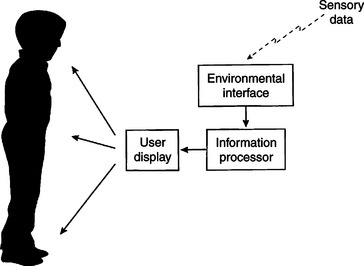
Figure 8-1 shows the major components of a sensory aid based on the parts of the assistive technology component of the HAAT model. The environmental interface detects the sensory data that the human cannot obtain through his or her own sensory system. This is typically a camera for visual data, a microphone for auditory data, and pressure sensors for tactile data. The environmental interface signal is fed to an information processor, the function of which depends on the type of aid. For sensory aids that use the same sensory pathway, the information processor primarily amplifies the signal. Examples include closed-circuit television (CCTV) for visual input and hearing aids for auditory input. In other cases, the information processor may be more complicated. For example, in an auditory substitution reading device, the information processor may take visual information from the sensor, convert it to speech, and then send it to the user as auditory information. In the case of the sensory aid, the human/technology interface is a user display, which portrays the sensory information for the human user. The processed information is presented to the user so that the alternative pathway can process it. For the visual pathway this is a visible display (e.g., a video monitor), for the auditory pathway it is an audio display (e.g., a speaker), and for the tactile pathway it is a vibrating pin or electrode array through which pressure or touch data are provided to the user.
Augmentation of an Existing Pathway
For someone who has low vision, the primary pathway (i.e., the one normally used for input) is still available; it is just limited. The limitation may be one of several types. The most common type of limitation is one of intensity. For visual information, this limitation means that the size of the input signal is too small to be seen. Eyeglasses are the most common type of aid used for this problem, but other ways can be used to magnify the signal. The second type of impairment is referred to as a frequency or wavelength limitation. For visual input, this is manifest in inadequacy in discerning colors or the contrast between foreground and background, and this problem can be addressed with filters or by varying contrast (e.g., black on white rather than white on black). Finally, there are field limitations. This term is most commonly used in describing visual loss, and the field may be limited in several ways (see Figure 3-4). The most common approach to problems of this type is to use lenses that are designed to widen the field.
Use of an Alternative Sensory Pathway
When a sensory input modality is so impaired that there can be no useful input of information through that channel, we must substitute an alternative sensory system. The use of braille for reading by persons who are blind is an example of tactile substitution for visual input. Tactile and auditory systems replace the visual system, and visual and tactile systems substitute for auditory input of information. Visual and tactile substitutions for auditory information are discussed in Chapter 9. When this type of substitution is made, the assistive technology practitioner (ATP) must be aware of fundamental differences among the tactile, visual, and auditory systems.
Tactile Substitution.
The tactile system has been used as the basis for many visual substitution systems. Visual information is spatially organized (Nye and Bliss, 1970). This means that visual information is represented in the central nervous system by the relationship of objects to each other in space; that is, the left, right, up, down, far, and near features of objects are preserved. In contrast, the auditory system is temporally organized (Kirman, 1973). This means that it is the time relationships in auditory signals that provide information. For example, it is the temporal sequence of sounds in speech that the auditory system uses to form words and derive meaning. Finally, tactile information is both temporally and spatially organized (Kirman, 1973), and sensory input from the tactile system requires both spatial and temporal cues. For example, the fingers are capable of distinguishing fine features such as those found on coins. However, to distinguish one denomination of coin from another, it is necessary to manipulate them in the hand. This movement of the coins provides temporal (time sequence) information that helps clarify the spatial information, and it is very difficult to distinguish two denominations of coins merely by placing a hand on top of them without movement. This combination of movement and texture is referred to as spatiotemporal information. The combination of tactile and kinesthetic or proprioceptive information is called the haptic sensory system.
Kirman (1973) presents an example that illustrates the differences between visual and tactile information for reading. Print on a page is organized spatially. People read by using saccadic eye movements, which jump from one group of letters to another. With each new point of focus, new information is taken in. This allows the visual system (including the eyes, peripheral pathways, and central nervous system components) to use its spatial feature extraction to recognize shapes as letters, to assemble them into words, and to associate meaning with them. In contrast, a person reading with braille moves his or her hand across the line of raised dots, obtaining both spatial (the organization of the six braille cells) and temporal (the moving pattern under his finger) information. If the sighted person were to use the method used with braille, the text would constantly move before the eyes, and this would result in a blurred image because the spatial information would be constantly changing. Thus we can say that the movement (temporal aspect) interferes with the visual input of information. On the other hand, if the braille user were to use the approach used by the sighted reader, he or she would place a finger on a character, input the information, and then jump to the next character. This would severely limit the input of braille information because the movement required by the tactile system would be absent. Thus the visual and tactile methods of sensory input are very different, which must be taken into account when one system is substituted for the other.
When vision is used for mobility rather than reading, there are some differences. In this case the visual image is constantly changing as the individual walks. The eyes scan the environment, and information is derived from the spatial arrangement of objects and people and from changes in the person’s position relative to these objects as he or she moves. The visual system (including oculomotor components) functions to stabilize images on the retina for input of data, even during movement. This maximizes input of changing spatial information. Ways in which persons with visual impairments use other senses and assistive devices for mobility are discussed in the section on mobility later in this chapter.
Auditory Substitution.
The auditory system has been used to substitute for visual information in several ways. Some of these have been more successful than others, and the reasons for success or failure illustrate the challenges of substituting one sense for another. The least successful approaches have been those that converted a visual image of letters into a set of tones. One such device was the Stereotoner (Smith, 1972). The environmental interface for this device was a camera consisting of a set of horizontal slits. As the camera passed over a letter, a black area (i.e., a part of a letter) resulted in a tone being produced and a white area (no letter) resulted in silence. As the camera moved over a letter, a series of tones was heard as changing musical chords. Although some individuals were able to use this information at a reading rate of 40 words per minute, the device was generally unsuccessful. Cook (1982) cites several reasons for this. First, the device required the user to recognize a chord pattern, then to assemble that into a letter, and then to put the letters together into a word that was meaningful in the context of the whole sentence. This is a difficult and unnatural process for the auditory system. Second, the necessity to read letter by letter using this approach resulted in a slow input speed and placed additional memory requirements on the user. Finally, the Stereotoner was tiring to the user because of the intense concentration required. The major lesson to be learned from this example is that the auditory system is ideally suited to the receipt of language information in certain forms (e.g., speech), but it is poorly suited to complex signals that represent spatial patterns, as in the case of the Stereotoner. This is the primary reason that reading devices using auditory substitution all use speech as the mode of presentation of information.
Devices for visual mobility have used auditory substitution with greater success. This is because mobility depends much more on gross cues than on precise spatial information as in reading. In mobility, the problem becomes one of identifying large objects as potential hazards.
PRINCIPLES OF COMPUTER ADAPTATIONS FOR VISUAL IMPAIRMENTS
Computer interaction is bidirectional, and the ATP must understand how computer outputs can be adapted for persons with sensory impairments. User output from a computer is generally provided by a visual display. This type of display is also referred to as soft copy. For both general-purpose computers and special-purpose computers built into assistive devices with displays, video display terminals, flat-panel displays, and liquid crystal displays are generally used as output devices. The other type of output from a computer is in a permanent form, or hard copy, from a printer. Computers also provide auditory outputs in sound, music, or synthetic speech. These outputs are important to individuals who have visual impairments.
Standard visual computer outputs are not suitable for use by persons who have vision impairments. The term low vision indicates that the individual is able to use the visual system for reading but that the standard size, contrast, or spacing are inadequate. The term blind refers to individuals for whom the visual system does not provide a useful input channel for computer output displays or printers. For individuals who are blind, alternative sensory pathways of either audition (hearing) or touch (feeling) must be used to provide input. Because low vision and blindness needs are so different from each other, they are discussed separately.
Graphical User Interface
For a human to interact with a computer, there must be an effective communication channel. The most commonly used channel today, the graphical user interface (GUI), is established for nondisabled users through the keyboard or mouse for input and a visual display or speakers for output. What makes these peripheral elements into a user interface is the way in which they interact with the internal computer programs. Input of data, storage and processing, and output are all handled by the computer operating system. Some types of user interfaces are more suitable for adaptation of the computer to provide physical or visual access to the computer. The ATP must understand the various types of user interfaces and how they affect access.
The GUI has three distinguishing features: (1) a mouse pointer, which is moved around the screen, (2) a graphical menu bar, which appears on the screen, and (3) one or more windows, which provide a menu of choices (Hayes, 1990). Movement of the mouse or a mouse equivalent (e.g., keystrokes, trackball, head pointer, or joystick) causes the pointer to move around the screen. Two primary characteristics of GUIs are particularly important in assistive technology applications: (1) the use of graphical menus and icons to which the user can point and click for input instead of using the keyboard and (2) multitasking capabilities, which allow more than one program to be loaded and run simultaneously. The creation of a graphical environment can save typing, reduce effort, and increase accuracy, and the use of icons generally helps with recall and ease of use. The GUI allows the use of windows, which partition the screen into smaller screens, each showing a particular application. When an application or function is opened or run by clicking (or sometimes double clicking), a feature (e.g., a calculator) or application (e.g., a word processor) is displayed in a window. Several windows may be open at the same time. Figure 8-2 shows multiple windows open and examples of menus and dialog boxes used for manipulating data and information. Specific implementations of GUIs have slightly different modes of operation, but the basic principles are similar to those described here.
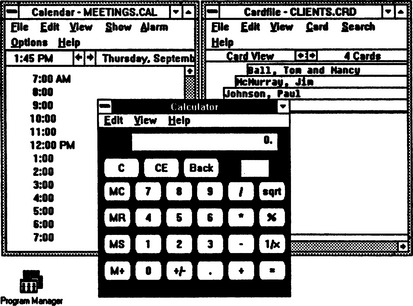
Figure 8-2 An example of a GUI with several windows open for different applications. (From Microsoft Windows manual, Microsoft Corp., Redmond, Wash.)
The GUI has both positive and negative implications for persons with disabilities. The positive features are those that apply to nondisabled users. The major limitation of GUI use in assistive technology is that the user may not have the necessary physical (eye-hand coordination) and visual skills. In addition, adaptation for alternative input or output devices is often difficult, and adaptations must be redone when changes are made to the basic operating system. The GUI is the standard user interface because of its ease of operation for novices and its consistency of operation for experts. The latter ensures that every application behaves in basically the same way (e.g., screen icons for the same task look the same, operations such as opening and closing files are always the same). Adaptations of the GUI for persons with disabilities are discussed in following sections.
The GUI presents unique and difficult problems to the blind computer user. Early computer user interfaces used a command line interface (CLI) in which commands were typed and then executed by the computer. There are fundamental differences between the ways in which a text-only CLI and a GUI provide output to the video screen. These differences present access problems related both to the ways in which internal control of the computer display is accomplished and to the ways in which the GUI is used by the computer user (Boyd, Boyd, and Vanderheiden, 1990). CLI-type interfaces used a memory buffer to store text characters for display. Because all the displayed text can be represented by an ASCII code, it is relatively easy to use a software program and to divert text from the screen to a speech synthesizer. Early screen readers operated on this principle. However, these screen readers were unable to provide access to charts, tables, or plots with graphical features. This type of system is also limited in the features that can be used with text. For example, all text is the same size, shape, and font. Enlarged characters or alternative graphical forms are not possible with a CLI-type of system, and this limits its usefulness to sighted users. The GUI uses a totally different approach to video display control that creates many more options for the portrayal of graphical information. Because each character or other graphical figure is created as a combination of dots, letters may be of any size, shape, or color and many different graphical symbols can be created. This is useful to sighted computer users because they can rely on “visual metaphors” (Boyd, Boyd, and Vanderheiden, 1990) to control a program. Visual metaphors use familiar objects to represent computer actions. For example, a trash can may be used for files that are to be deleted, and a file cabinet may represent a disk drive. The graphical labels used to portray these functions are referred to as icons.
Another feature of the GUI is that it provides a specific, consistent layout of controls on the screen. This aids the user (especially a novice) in accessing programs because everything is consistent from one application program to another and within an application. Figure 8-2 illustrates a typical GUI with several windows open and an application program running. Note that the icons used are of familiar objects, and each window has a similar look and feel.
GUI Problems and the Blind Computer User
The GUI presents several problems to the blind user. First, the graphical characters are not easily portrayed in alternative modes. Text-to-speech programs and speech synthesizers are designed to convert text to speech output (see Chapter 7). However, they are not well suited to the representation of graphics, including the icons (visual metaphors) used in GUIs. Most icons used in GUIs have text labels with them, and one approach to adaptation is to intercept the label and send it to a text-to-speech voice synthesizer system. The label is then spoken when the icon is selected. Another major problem presented to blind users by GUIs is that screen location is important in using a GUI, which is not easily conveyed by alternative means. Visual information is spatially organized, and auditory information (including speech) is temporal (time based). It is difficult to convey the screen location of a pointer by speech alone. It is difficult to portray two-dimensional spatial attributes with speech. An exception to this is a screen location that never changes. For example, some screen readers use speech to indicate the edges of the screen (e.g., right border, top of screen). A more significant problem is that the mouse pointer location on the screen is relative, rather than referenced to an absolute standard location. This means that the only information available to the computer is how far the mouse has moved and the direction of the movement. If there is no visual information available to the user, it is difficult to know where the mouse is pointing. Other challenges presented to the visually impaired user of a GUI include the organization of the screen with elements spatially clustered visually; multitasking in which several windows are open simultaneously, with one possibly occluding another (i.e., visually displayed “on top” although both windows are active); spatial semantics (information presented through position in tables, groupings etc.); and graphical semantics (information portrayed through visual elements such as font size, colors, style) (Ratanasit and Moore, 2005). The Microsoft application programming interface for accessibility is a set of technologies that facilitate the development of screen readers and other accessibility utilities for Windows. These technologies provide alternative ways to store and access information about the contents of the computer screen. The accessibility APIs also include software driver interfaces that provide a standard mechanism for accessibility utilities to send information to speech devices or refreshable braille displays.
Ratanasit and Moore (2005) reviewed three primary types of nonspeech sound cues used for representing visual icons used in GUIs: (1) auditory icons, (2) earcons, and (3) hearcons. Auditory icons are everyday sounds used to represent graphical objects. For example, a window might be represented by the sound of tapping on a glass window or a text box by the sound of a typewriter. The Screen Access Model and Windows sound libraries are used in some applications. Earcons are abstract auditory labels that do not necessarily have a semantic relationship to the object they represent. Motives are components of earcons such as rhythm (e.g., the length of a musical note, a Latin beat), pitch (e.g., a musical C vs A), timbre (e.g., sound of a type of instrument), and register (e.g., octaves on the musical scale). An example of an earcon is a musical note or string of notes played when a file, window, or program is opened or closed. Different musical instruments may be used to represent different actions, such as a trumpet representing opening a file and a drum representing closing. In evaluations by blind users, earcons associated with musical characteristics were more effective than those using unstructured sounds (i.e., lacking rhythm, pitch and other cues). Hearcons are either nature sounds or musical works or instruments. Hearcons are completed musical sounds such as those produced by a running river or birds or a musical work, whereas earcons are separate audio components. In an evaluation by visually impaired participants, hearcons did not sufficiently portray semantic relationships to be effective. Font types have been represented by male versus female synthesized voices for normal and hyperlink text or softer and louder sounds for normal versus bold font.
Another obstacle faced by individuals who are visually impaired is the use of graphical information in tables and graphs. Three primary issues are the size of the table (i.e., providing information of the boundaries), overloading with speech information, and knowledge of current location within the table. Various methods have been developed to represent this information auditorally (Ratanasit and Moore, 2005). Nonspeech sounds are used to provide spatial relationships (e.g. a plucked violin string earcon might be used to represent the lines in a table or graph) and the text-based information contained in the table or graph is provided by synthesized speech. Another technique used is to associate higher pitches with larger numbers and lower pitches with smaller numbers in portraying trends and similar graphical data. Evaluation with visually impaired participants indicated greater success in using tables when nonspeech cues were combined with speech-based information. Another graphical approach is to represent numerical values by pitch, as above, but use a different timbre (instrument sound) for each axis.
READING AIDS FOR PERSONS WITH VISUAL IMPAIRMENTS
The major problems faced by persons with visual impairments are (1) access to printed reading material, (2) orientation and mobility (i.e., moving about safely and easily), and (3) access to computers, including the Internet. This section first describes reading aids for people with low vision who still obtain information through the visual system. Then tactile and auditory alternatives for people who are blind are discussed. The term reading is used here to include access to all print material, including text, mathematics, and graphical representations (e.g., maps, pictures, drawings, and handwriting). As discussed later, some types of reading have very specialized alternatives (e.g., talking compasses in lieu of maps, talking bar code readers for medicines and food cans).
Magnification Aids
There are three factors related to visual system performance for reading: size, spacing, and contrast. This section discusses the principles of low-vision aids for reading print material. These devices are generally referred to as magnification aids. Magnification may be vertical (size) or horizontal (spacing) or both. Magnification also includes assistive technologies that enhance contrast. There are three categories of magnification aids: (1) optical aids, (2) nonoptical aids, and (3) electronic aids (Servais, 1985). Examples of these are listed in Box 8-1.
Assistive technologies can also be used to enhance visual cues for children who have low vision (Griffin et al, 2002). Color and contrast can be enhanced by using hues (the named color, red, blue, etc.), lightness (perceived intensity), and saturation (perceived differences in color). Deficits in color vision may be difficult to detect in children, and Griffin et al provide the following guidelines for use in visual magnifiers, software, or Web site design for children with low vision: use colors that differ as little as possible in lightness, avoid colors from the ends of the spectrum, avoid white or gray with any color of the same lightness, avoid colors adjacent to each other in the color spectrum, and avoid use of pastel colors. Spatial considerations are another consideration in enhancing visual access for children with low vision (Griffin et al, 2002). Space includes size, patterns, outlines, and clarity of text and pictures. Optical magnifiers, software programs, and Web sites can address these features.
Optical Aids.
More than 90% of all individuals who have visual impairments have some usable vision (Doherty, 1993). Thus it is important to carefully choose low-vision devices to meet their needs. The National Institute on Disability and Rehabilitation Research has published a booklet describing clinical assessment methods, equipment, and tools needed for evaluating and matching of consumer’s needs to low-vision devices (Doherty, 1993). With the use of optical aids, individuals with low vision may be able to see print, do work requiring fine detail, or increase the range of their visual fields.
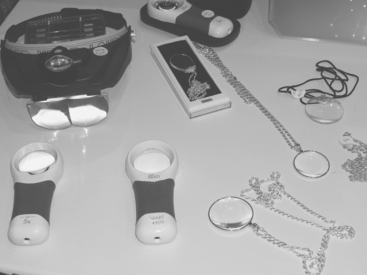
The simplest of optical aids is the hand-held magnifier. Among the advantages of these devices is that they require little training, they are lightweight and small (can fit in a pocket or purse), and they are inexpensive. Some also have a built-in light to increase contrast, and others have several lenses, which can be used alone or in combination, depending on the application. A selection of optical aids is shown in Figure 8-3. Sometimes it is difficult to hold a lens and carry out a task (e.g., a two-handed task such as embroidery). In other cases it may be difficult to hold a magnifier steady (e.g., for someone who is elderly or in poor health). In these situations, stand magnifiers, some of which have a built-in light, are useful. Some magnifiers are mounted on eyeglass frames to free both hands.
One approach to limitations of visual field is the use of field expanders. These are generally prisms or special lenses built in to eyeglass frames. When magnifying lenses are used, the expansion of the field reduces the size of the image and a tradeoff occurs. The image is not reduced in size when prism lenses are used to expand the field.
Telescopes assist with distance vision. These may be either worn on the head or held in the hand, and they may be monocular or binocular (Mellor, 1981). They may be used, for example, by students who need to see a chalkboard or an adult who needs to monitor children playing outdoors. Telescopic aids provide an enlarged but narrowed visual field. Head-mounted units may be attached to eyeglass frames or have a separate frame. Head-mounted devices are particularly useful when long periods of wear are necessary, such as when watching television.
Nonoptical Aids.
This approach to magnification is based on changes in the actual material that is to be read (Servais, 1985). Common examples are large-print books or other materials such as menus, programs, and newspapers. High-intensity lamps can significantly increase contrast of reading materials, and high-contrast objects in the environment can aid in localization. For example, brightly colored furniture or dishes can help with visualization. A glass that stands out from a countertop is easier to find and fill with liquid. As Servais (1985) points out, nonoptical aids can be very useful under the right circumstances, but they are limited in application because they are specialized to one or a few tasks.
Electronic Aids.
There are limitations to the amount of magnification and contrast enhancement that can be obtained by optical approaches to magnification. Electronic devices can overcome these limitations. Many electronic low-vision aids are based on CCTV devices. Some manufacturers refer to these devices as video magnifiers. There are two primary advantages of CCTV devices. The first of these is that the image size can be increased much more than for optical aids. Equally important is that the image can be manipulated and controlled. For example, contrast can be dramatically affected by the use of color or reversed images (e.g., white type on black background). The overall brightness of an image can also be controlled in CCTV devices, further increasing contrast.
A typical CCTV is shown in Figure 8-4. The major components are a camera (environmental interface), a video display (user display), and a unit that controls the presentation of the image (information processor). The material to be read is placed on a scanning table, which easily moves both left to right and forward and back. There may be mechanical notches that help align the material, and some devices have adjustable margins. When the text is enlarged, the relative position of the material on the page is lost, and a spotlight of high intensity is sometimes used to show the user which part of the page is being imaged. With use of a split video screen, CCTV devices can be operated in conjunction with enlarged computer video displays to allow magnification of both computer data and the CCTV image of standard print material. Other contexts in which CCTV devices are used are to complete job-related tasks, to access educational materials at all levels, and for recreational reading.
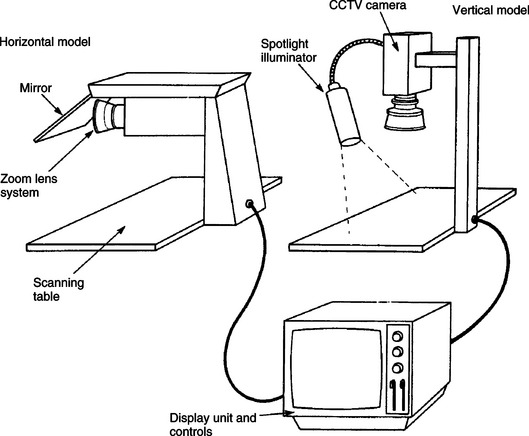
Figure 8-4 CCTV system for low-vision assistance. (From Servais SP: Visual aids. In Webster JG et al, editors: Electronic devices for rehabilitation, New York, 1985, John Wiley.)
John WileyAll CCTV devices have the major features shown in Figure 8-4. An example of a CCTV device in use is shown in Figure 8-5. There is, however, a relatively wide range of features available in specific devices. The two broad categories of CCTVs are desktop and portable. The first category is by far the largest in terms of commercial products. Size and spacing are controlled primarily by two factors in desktop units: (1) size of the video monitor and (2) amount of enlargement provided by the electronics. Typical video monitors range in size from 12 to 19 inches, and maximal electronic magnification ranges from 45 to more than 60 times. There is a major tradeoff between monitor size and overall space required for the unit. Space requirements are often a significant limitation if a computer terminal, printer, and other office equipment must share space with the CCTV. A split-screen system overcomes this space problem to a large degree. CCTV systems often allow access not only to print material but also to the computer video screen. The technology is virtually the same for print or computer output. One such product is Spectrum SVGA, which allows the screen to be split into two. One half is used for CCTV display of printed material and the other is used for enlarged computer output. This system also functions as either a computer screen magnifier only or CCTV only.
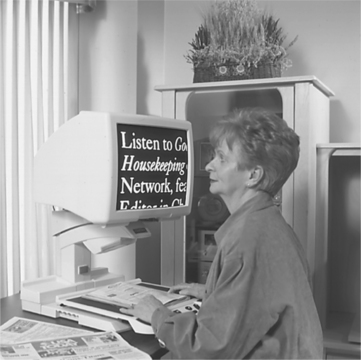
A major challenge for people using video magnifiers is navigation around the text because it is often so enlarged that only a portion of a line or two of test is visible. This situation can result in missed words or difficulty in finding the beginning of the next line. One approach is to create a digital image of the page and then let the computer-based magnifier automatically scroll through the text (myReader, Pulse Data Human Ware, Concord, Calif., www.pulsedata.com). Automatic reading can be one long row that scrolls across the screen, a column of text whose width is such that it all appears on the screen at once or one word at a time with the user controlling the rate at which each word is displayed. Scrolling rate, magnification, and cursor movement around the text field are all adjustable and controllable by the user.
Contrast enhancement is provided either by gray scale or color. In the former approach the foreground and background contrast is adjustable and may be reversed (e.g., black letters on white or white letters on black). Color adds significant contrast enhancement because the user can choose alternative background and foreground colors. Not all persons with visual impairments have the same color vision, and color vision varies with visual field. Having some control over the foreground-background color combination allows the display to be customized to the needs of an individual user. Another advantage of color displays is that the original color of the print material can be retained. Maps with colored areas can be imaged; a preprinted form that calls for a signature “on the red line” shows the line as red, and so on. The major tradeoff with color monitors is that the image is not as sharp as the black and white image, especially at large magnifications. Color CCTVs are also more expensive than their black and white counterparts.
Most desktop CCTVs are relatively large and heavy primarily because of the video monitor. Liquid crystal displays and flat-panel screens have changed this. Flat-panel displays have different characteristics than cathode ray tubes, and the enlarged images provided by these two technologies are not equivalent or equally useable by all individuals. All desktop units must also be plugged into a wall socket for power. Thus it is difficult to transport them or to use them in contexts such as a classroom (unless a separate workstation is established—a common practice), and desktop units are generally kept in one physical location. Some desktop models have very small cameras (e.g., 1-inch diameter, 3 inches long) that can be connected to any video monitor or television set. This facilitates transportation and use in different locations.
Fully portable CCTVs are designed to be carried with the user. The most significant differences between these portable units and desktop CCTVs are size, weight, and battery power. Portable units weigh as little as 1.2 pounds and measure only about 9 × 3 inches for the display and 4 × 2 inches for the camera (for example, Pico, JBliss Imaging Systems, San Jose, Calif., www.jbliss.com; Pocket Viewer, HumanWare, Inc., Concord, Calif., www.humanware.com; Carrymate, Clarity, www.clarityusa.com/; Magnilink, Vision Cue, www.visioncue.com/). Portable units have a hand-held camera that is moved over the page. Maximal magnification varies from 3 to 64 times, and it may be controlled by changing camera lenses or by electronic image enhancement. Some units allow the camera to be connected to a desktop video monitor, standard television set, or portable computer to display the CCTV output. This allows it to be used in a portable or stationary mode, depending on the needs of the user. These cameras are extremely small (e.g., 2 inches × 2 inches × 4 inches, weighing 6 ounces). This flexibility is useful when greater magnification is needed for certain material (e.g., fine print) or at certain times (e.g., at the end of the day, when fatigue is greater) and when the user must travel to different settings during the day.
Access to Visual Computer Displays for Individuals With Low Vision
Screen-magnifying software that enlarges a portion of the screen is the most common adaptation for people who have low vision. The unmagnified screen is referred to as the physical screen. There are three basic modes of operation for screen magnifiers: lens magnification, part-screen magnification, and full-screen magnification (Blenkhorn, Gareth, and Baude, 2002). At any one time the user has access to only the portion of the physical screen that appears in this magnified viewing window. Lens magnification is analogous to holding a hand-held magnifying lens over a part of the screen. The screen magnification program takes one section of the physical screen and enlarges it. This means that the magnification window must move to show the portion of the physical screen in which the changes are occurring. Part-screen magnification is similar to lens magnification, except that the magnified portion is displayed in a separate window, usually at the top or bottom of the screen. The magnification program will follow a particular part of the screen referred to as the focus of the screen (Blenkhorn, Gareth, and Baude, 2002). Typical foci are the location of the mouse pointer, the location of the text-entry cursor, a highlighted item (e.g., an item in a pull-down menu), or a currently active dialog box. Screen readers automatically track the focus and enlarge the relevant portion of the screen. For example, if a navigation or control box is active, then the viewing window can highlight that box. If mouse movement occurs, then the viewing window can track the mouse cursor movement. If text is being typed in, then the viewing window can follow the text entry cursor and highlight that portion of the physical screen.
Full-screen magnifiers enlarge the entire screen, with the center of the enlarged portion being the cursor location. Thus, at any one time the user has access to only the portion of the physical screen that appears in this magnified viewing window. The size of the text in this window, the magnification, varies from 2 to 32 times or more in current magnifier programs. The viewing window must track any changes that occur on the physical screen. The mouse pointer can also be enlarged. Blenkhorn, Gareth, and Baude (2002) describe the design of screen magnification programs, including mouse pointer magnification.
Adaptations that allow persons with low vision to access the computer screen are available in several commercial forms. Lazzaro (1999) describes several potential methods of achieving computer access. The simplest and least costly are built-in screen enlargement software programs provided by the computer manufacturer. One system for the Macintosh, built in to the operating system, is Zoom. This program allows for magnification from 2 to 20 times and has fast and easy text handling and graphics capabilities. More information is available on the Apple accessibility Web site (http://www.apple.com/education/accessibility/technology). Magnifier (Table 8-1) is a minimal function screen magnification program included in Windows (http://www.microsoft.com/enable/default.aspx). It displays an enlarged portion of the screen (in Windows XP, from 2 to 9 times magnification; in Windows Vista, from 2 to 16 times), uses a part-screen approach and has three focus options: mouse cursor, keyboard entry location, and text editing. Other Magnifier options include inverted (e.g., black background, white letters), changing the location of the magnification pane, and high-contrast modes. For individuals who need only the high-contrast option, high contrast provides many color combination options for text, background, windows, and other GUI features. This is available in the control panels: Accessibility Options for Windows XP, Ease of Access for Windows Vista, and Universal Access for Macintosh. None of these built-in options are intended to replace commercially available full-function screen magnifiers. The mouse pointer settings under the Windows “mouse” control panel provide for changing the size, style, and color combination of all the pointers used during GUI interaction.
TABLE 8-1
Simple Adaptations for Visual Impairment
| Need Addressed | Software Approach |
| User cannot see status of CAPS LOCK, NUM LOCK, etc., lights | ToggleKeys |
| User requires greater contrast between foreground and background or greater size of characters on the screen | Magnifier or high contrast color scheme |
| User requires speech output rather than visual output | Narrator* |
Software modifications developed at the Trace Center, University of Wisconsin, Madison. These are included as before-market modifications to Windows and Macintosh operating systems.
*Windows Vista and XP versions differ. Features of Windows XP Narrator are documented on http://www.microsoft.com/enable/training/windowsxp/narratorturnon.aspx. The out-of-box Windows Vista text-to-speech (TTS) engine speaks U.S. English. This voice is called “Microsoft Anna.” In Chinese SKUs of Vista, the TTS engine speaks Mandarin, called “Microsoft Lili.” A different voice, perhaps speaking another language, requires the installation of a third-party TTS engine. Narrator will use any Speech Application Programming Interface (SAPI)–compliant TTS engine installed on Windows Vista and configured to be the default TTS engine. Keyboard commands include reading text (a character at a time, word at a time, line, paragraph, document) and navigating text on the basis of font attributes. For example, move cursor to where the font attributes have changed.
Screen-magnifying lenses that are placed over the monitor can also enlarge the information, but limited magnification (about two times) and distortion are the major problems. Increased contrast and reduced glare can be achieved with filters placed over the screen. Large monitors can have the effect of increasing text and graphics size, but the magnification is fixed. Adaptations that include both hardware and software provide the greatest compatibility, but they are also the most expensive alternatives.
Many screen magnification programs are available for use with Windows or Macintosh operating systems (for example, Lunar and Lunar Plus from Dolphin, Computer Access, San Mateo, Calif., www.dolphinusa.com; MAGic from Freedom Scientific, St. Petersburg, Fla., www.freedomsci.com; VIP and ezVIP from JBliss Imaging Systems, San Jose, Calif., www.jbliss.com; Zoom Text, Zoom Text Xtra and BigShot from AI Squared, Manchester Center, Vt., www.aisquared.com; and Galileo, Baum, Germany, www.baum.de/) (see also the Microsoft accessibility Web site, http://www.microsoft.com/enable/default.aspx). These software programs offer wider ranges of magnification and have more features than built-in screen magnifiers. These programs generally offer access to Windows applications, including spreadsheet and word processing, e-mail, and Internet browsers. Many can also run with a screen reader (speech output utility). In some cases the screen reader is bundled with the magnification software, and in other cases the screen magnifier speech output runs in conjunction with a separate screen reader. Magnification of up to 32 times or more is available. The various screen modes described above are available in most screen magnification software. These programs also allow tracking of the mouse pointer, location of keyboard entry, and text editing. The magnification window can be coupled with one or more of these to facilitate navigation for the user. All screen images (including windows, control buttons, and other windows objects) are magnified. Automatic scrolling of the screen (left, right, up, down) is also available to make it easier to read long documents when they are magnified.
For individuals who have low vision or blindness, hard copy (printer) output is also a challenge. If the output is to be read by a person with normal vision, the text can be edited on the screen using the methods described earlier and then printed in a standard printer font size. If, however, the user with visual impairment needs to access the hard copy output, then either an enlarged or a braille printout is desirable. For enlarged print, the most common approach is to use a laser printer coupled with a special software program to create larger characters.
Devices That Provide Automatic Reading of Text
Automatic reading of text requires the three components shown in Figure 8-1: an environmental interface, an information processor, and a user display. The environmental interface is a camera that provides an image of the printed page, and the user display can be either tactile (braille) or speech synthesis. A block diagram showing the major components of an automatic reading machine is presented in Figure 8-6. Device operation involves scanning, optical character recognition (OCR), and the translation of recognized characters and either text-to-braille or text-to-speech conversion (see Figure 8-6). Most reading machines provide speech output, and some provide braille or both braille and speech. Both software and hardware approaches are used for speech synthesis output in much the same way as those used in screen readers for the blind. Synthetic speech for automatic reading systems is available in a variety of languages. Some automatic reading devices use standard personal computers (PCs) with special software for information processing. The PC is interfaced to a scanner (camera with software) and display (refreshable braille or speech synthesis). Current stand-alone (scanner included in the basic system) automatic reading machines offer simple one-button operation to scan a document and have it read. These units also provide manual access to features such as cursor keys to move around in the text, storing and retrieving files, and transferring the text to a computer or a disk. Automatic reading systems can also be used in conjunction with screen readers and Web browsers.
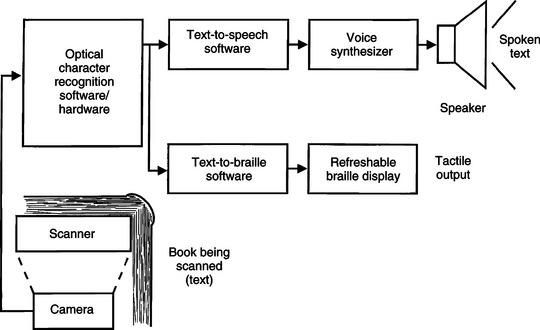
Figure 8-6 The major components of an automatic reading machine for persons with total visual impairment.
Camera and Scanner Characteristics for Automatic Reading.
To input the information into the machine, reading devices may use a flatbed scanner, a hand-held scanner, or a combination of the two (Fruchterman, 1991). Flatbed scanners have a glass plate 18 to 24 inches long and 10 to 14 inches wide. Scanners are usually defined as letter or legal size depending on the dimensions of the flat bed. This type of scanner, also called a desktop scanner, resembles a photocopy machine; however, the thickness is only about 3 to 4 inches. The material to be read is placed on the surface of the glass, and one advantage of this type of unit is that it can scan almost any kind of document, from a single sheet to a bound magazine or book. An automatic document feeder attachment can also be added to many flatbed scanners. This allows multiple sheets to be loaded and scanned. Scanners are widely used for home or business applications such as scanning photographs for use on Web pages or scanning documents for editing when an electronic copy is not available. For this reason, the technology is improving and the prices are falling as a result of the general market demand (Grotta and Grotta, 1998). This has resulted in advances that benefit blind users of automatic reading systems. Hand-held scanners vary in width from 2½ to 8½ inches (Converso and Hocek, 1990). For scanners narrower than the page, the camera must be moved across a line of text and then moved down to the next line, and so on all the way down the page. This can be difficult for a person who is blind because there is no frame of reference to keep the scanner on one line or to move just one line down. Flatbed scanners overcome this problem. The hand-held scanner can image most types of material, including single sheets and bound documents. An additional advantage is that it can be used with a laptop computer to create a portable reading machine.
All scanners consist of a light source and a camera, and some also contain lenses and mirrors to focus the image on the camera (Converso and Hocek, 1990). Grotta and Grotta (1998) describe both the use of charge-coupled device (CCD) imaging electronics and an emerging technology called contact image scanners (CIS). CCD cameras use a lens and mirror arrangement that moves across the document with the light source (usually a fluorescent lamp) and that is used to focus the image on the CCD detector. In contrast, CIS systems have a single row of sensors that is positioned just a few millimeters below the document and moves across it, together with an array of light sources, during the scan. The CIS systems draw less power; have a simpler mechanical design, making it possible to have thinner units; and eliminate the delicate optics of CCD devices. The resolution of CIS systems is not as good as that of CCD devices, but it is rapidly improving. The CCD or CIS array serves as a camera that converts the areas of light and dark to an electronic format, and computer software stores it in memory. Hand-held types have only the camera and light source.
The image that the camera stores consists of an array of black and white or color areas called pixels. The density of these pixels in the computer-stored image measures the quality of the scanner image. The units of measure are dots per inch. Scanners have resolutions from 300 to 4800 dots per inch (Grotta and Grotta, 1998). The other major specification that is used is gray-scale levels (for black and white scanning) and color bit depth for color scanning. Typical gray scale values are 256 levels. Color bit depth varies from 24 to 36 bits (Grotta and Grotta, 1998).
Some automatic reading systems have scanners built into them (for example, Ovation, Telesensory, Sunnyvale Calif., www.telesensory.com); Sara, Freedom Scientific, St. Petersburg, Fla., www.freedomsci.com; Pulse Tech Book Reader, http://www.plustek.com; POET-Compact, Baum, www.baum.de/index-e.php; ScannaR, HumanWare, Concord, Calif., www.humanware.com). These systems include a flatbed scanner, built-in computer, voice output, and hard drive with room for up to 500,000 pages of text. In some cases Digital Audio-Based Information System (DAISY) reading capability for digital books (see below) is included. Scanned documents can be saved in MPS, WAV, or plain text format. Many of these systems require only a single button to be pressed to scan and read a document. Some units also provide multiple languages for spoken output. Other reading systems are software products that include optical character recognition and text-to-speech synthesis and are designed to use external commercial scanners and computers (for example, Open Book, Freedom Scientific, St. Petersburg, Fla., www.freedomsci.com; Reading Advantage Telesensory, Sunnyvale, Calif., www.telesensory.com; Cicero, Dolphin Products, www.dolphincomputeraccess.com; An Open Book, Handy Tech Elektronik GmbH, Germany, www.handytech.de).
Optical Character Recognition.
The camera and scanner provide an image, consisting of an array of pixels. This image is black and white or color dots, and it is not in a form that can be translated into speech or braille. OCR is used to carry out this conversion. Units, called OCRs, have been developed for scanning print documents into computer-readable form by businesses. They also are used in automatic reading devices for persons who are blind.
The OCR is a software program that runs on a standard PC. The primary function of the OCR is to analyze the raw pixel data and assemble it into letters, spaces (to delineate words), and punctuation. Graphics (pictures or drawings and the elaborate characters sometimes used to begin chapters in books) must be removed from the text before output. There are a number of problems that OCR software must solve. The most significant of these is that letter recognition must occur with different print fonts. OCRs that accomplish this are called omnifont OCRs. Most scanners have an OCR product bundled with the scanner. These OCRs provide basic OCR capabilities, but they do not match stand-alone OCR products. Automatic reading systems use the professional stand-alone OCR products to achieve the best possible results. There are several general-purpose commercial omnifont OCR systems commonly used in reading machines for people who are blind. Some companies that provide automatic reading systems have their own proprietary OCR software, and others use professional-quality OCR software developed for business applications. The majority of the commercial software incorporated into automatic reading systems uses either the Xerox or Caere OCR software. Most current scanners use OmniPage LE (Nuance Corp, Burlington, Mass., www.nuance.com), the TextBridge (Nuance Corp) Classic, or proprietary OCR software. All OCR software available separately is compatible with the Windows operating system, and several automatic reading systems use standard PCs, OCR software, and an external scanner. Converso and Hocek (1990) present some guidelines for selecting a scanner and OCR for specific applications. They also include a discussion of computer hardware and software (e.g., word processing) factors to consider when scanners and OCRs are obtained.
Braille as a Tactile Reading Substitute
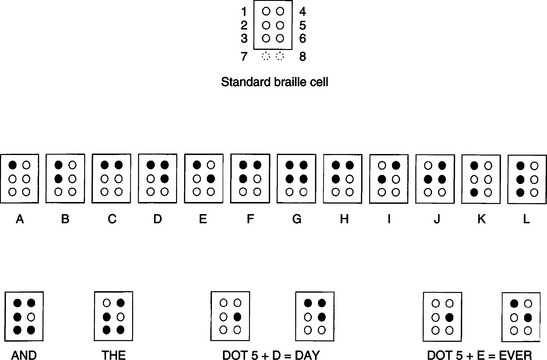
The most widely used tactile substitution device for persons with visual impairments is braille. Each braille character consists of a cell of either six or eight dots, as shown in Figure 8-7. The seventh and eighth dots are used to show cursor movement or to provide single-cell presentation of higher-level ASCII codes. This is necessary because the six braille dots can only display 64 different combinations and there are 256 ASCII codes for characters (upper and lower case alphabet, numbers, special symbols, and control characters such as RETURN). Figure 8-7 shows examples of letters and numbers. When text is directly translated into braille letter by letter, it is referred to as Grade 1. Also shown in Figure 8-7 are some braille codes for words (called wordsigns) and word endings. The use of these contractions significantly speeds up the rate of reading, and this type of braille is called Grade 2 or Grade 3, depending on the number of contractions used. Reading rates with Grade 1 braille are about 40 words per minute. With Grade 3, reading speeds can approach 200 words per minute (Allen, 1971). Traditionally, braille has been produced by embossing on heavy paper, and this method is still widely used. For persons who develop skill with it, braille can be a fast and efficient method for accessing print materials.
Characteristics of Braille.
There are several disadvantages to the use of braille, especially in embossed form. First, the embossed material is heavy and bulky, and each braille page has significantly less information than a printed page of the same size. For example, a braille version of a 400-page print book would fill four books, each the size of an encyclopedia volume (Mann, 1974). A second disadvantage is that the cost of producing braille in an embossed form is high compared with print materials. For this reason, only a fraction of the total print literature is available in braille form. A third limitation is related to the spatial orientation of visual (print) material. When a person scans for a particular piece of information or edits text, this spatial orientation is used to find the particular piece of text needed. This process is difficult when the embossed braille paper format is used. This is partially because of the bulky nature of the material, but it is also a result of the difficulty that braille readers have in scanning text quickly. Finally, braille embossers do not allow corrections to be made. Once the dot pattern is impressed into the paper, it is not possible to remove it.
Braille itself, regardless of format, has limitations as well. The most significant is that very few persons (fewer than 10%) with severe visual impairment learn to use it. This is partially because more than 65% of all persons who become blind do so after age 65 years (Mann, 1974), and many of these cases are the result of diabetes, which also affects the tactile sense, making braille less desirable than other alternatives such as talking books. Despite all these disadvantages, braille is the modality of choice for many persons with severe visual impairment, and the use of a format other than embossed paper significantly enhances the effectiveness of this modality. One of the most widely used of these alternative formats is a refreshable braille cell. Computer output systems use either a refreshable braille display consisting of raised pins or hard copy by use of braille printers.
Refreshable Braille Displays.
Because braille is represented by a series of dots, raised pins can be substituted for the traditional embossed paper format. This approach, called refreshable braille display, is shown in Figure 8-8. There are several advantages to this format. The most significant of these is that the refreshable display is controlled by an electronic circuit that can be interfaced to computer displays or braille keyboards. This allows information to be stored electronically and greatly reduces the bulk compared with embossed braille. Second, because the text material is in electronic form, it can be edited, searches can be made, and copies of braille material can be easily produced in electronic form (e.g., on CD removable memory). The refreshable braille cell (or cell array) can also be used as the output mode for an automatic reading machine.
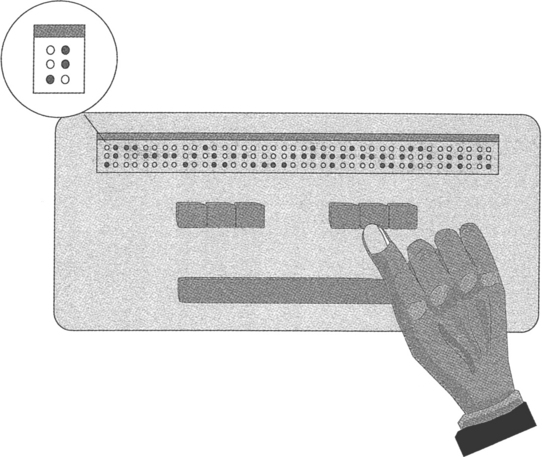
Each refreshable braille cell has a set of small pins arranged in the shape of a standard braille cell. The pins that correspond to the dot pattern for a letter or word sign are raised. Both Grade 1 and Grade 2 braille can be presented on refreshable displays by use of software that converts text from ASCII format to braille. Arrays of from 1 to 80 cells are available.
Stationary refreshable braille displays have arrays with multiple braille cells. Typically the array sizes are 20, 40, or 80 cells (for example, Pulse Data Human Ware, Concord, Calif., http://www.pulsedata.com; Freedom Scientific, St. Petersburg, Fla., www.freedomsci.com); ALVA Series, Vision Cue, Portland, Ore., http://www.visioncue.com/). These arrays, and the hardware and software to control them, typically cost in the range of $3500 to $10,000 depending on the number of cells and the manufacturer. Generally, the standard six-dot format is used for each cell. For an eight-dot cell, the price for a 40-cell array is 20% higher than for the six-dot format. The 80-cell format allows an entire line of a computer screen to be displayed at one time. An eight-dot, 80-cell refreshable display can cost as much as $10,000, a significant increase over the cost of a 40-cell, eight-dot device. Thus price is a major consideration in refreshable braille displays. The refreshable braille arrays we have described generally can be used as an alternative to the screen in desktop computers.
The ALVA (Vision Cue, Portland, Ore., http://www.visioncue.com/) braille terminals provide 44-, 70-, and 80-cell refreshable displays for desktop use and 23- and 44-cell displays for portable applications (battery operated). All versions have eight-dot braille cells. All ALVA models also provide extra status cells that display the location of the system cursor, which line of text is displayed in braille, which attributes are active, and the relationship of those attributes to the characters on the screen. This information can be monitored with the left hand while the right hand reads the text on the braille display. USB and serial ports are available for data transfer. Text is provided in both Grade 1 and Grade 2 braille.
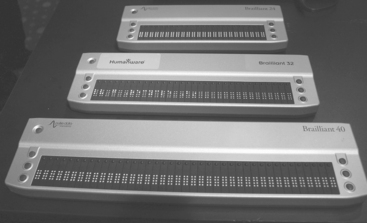
Freedom Scientific (Freedom Scientific, St. Petersburg, Fla., www.freedomsci.com) makes 40- and 80-cell braille displays. The 40-cell unit includes a Braille keyboard. Both the 40- and 80-cell versions have navigation features accessible through a series of buttons on the display. Combinations of buttons are used to enter commands. Another product, the PAC Mate portable Braille display, is a 20-cell refreshable braille display that is connected to any computer through a USB port. This unit uses a seamless design between braille cells that makes the display feel like paper. It works with most Windows-based software packages. Pulse Data Human Ware (Concord, Calif., http://www.pulsedata.com) makes a series of refreshable braille displays, shown in Figure 8-9. The 40-cell and 24-cell Brailliant refreshable braille displays are designed for use with a laptop or desktop computer. The Brailliant 32-, 64-, and 80-cell displays are eight-dot braille displays for desktop computers. All these models are configured for split-window display or as programmable status cells and all include Bluetooth and USB connectivity. The latter are accessed by clicking a sensor located above one of the braille cells to instantly move the mouse pointer or cursor to a new location for editing. Grade 2 braille translation is included on all models.
For computer users who are familiar with braille, this approach can be more effective than screen readers. However, a combination of approaches may be most effective with braille and speech combined. If done thoughtfully and carefully, the hardware and software designed for braille can be used together with that developed for screen reading with speech synthesis. Supernova (Dolphin Computer Systems, San Mateo, Calif., www.dolphincomputeraccess.com) provides screen magnification (2 to 32 times) and speech and braille output in one package for Windows applications. There are six different viewing modes: full screen, split screen, window, lens, autolens, and line view (for smooth scrolling). Speech output is available letter by letter during typing or word by word. A variety of languages and speech synthesizers can be used with Voyager. “Hooked access” allows parts of the screen, such as the current line of a word processor, to be permanently displayed. Supernova also supports graphic object labeling and provides speech output and a braille layout mode.
Portable Braille Note Takers and Personal Organizers.
Stand-alone data managers or personal organizers vary in size from a compact 4.5 inches square and about 1.5 inches thick to the size of a laptop computer (approximately 9 × 12 inches) (for example, the Braille Lite Series, Freedom Scientific, St. Petersburg, Fla., www.freedomsci.com); Braille Desk 2000, Artic Technologies, Troy, Mich., www.artictech.com; Braille Wave, Handy Tech Elektronik GmbH, Germany, www.handytech.de; Braille Note and Voice Note, HumanWare, Concord, Calif., www.humanware.com); Aria, Sensory Tools, Robotron Proprietary Limited, St. Kilda, Australia, www.sensorytools.com/products.htm; MPO 0550, Alva Access Group, Oakland, Calif., www.alva-bv.nl/). A typical model is pictured in Figure 8-10.
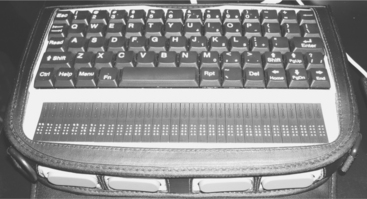
Some models use a braille keyboard for input and others use a standard QWERTY keyboard. The braille keyboard has one key for each of the six dots in a braille cell. Additional keys are used for eight-dot braille and for control, editing, and data management. Output takes several forms. Synthesized speech is available in all units. Earphone and speaker output for the synthesized speech are also available. Some models include a refreshable Grade 2 braille display (from 8 to 32 braille cells) either alone or paired with synthetic speech. The speech synthesizer and refreshable braille display can also be used as outputs (replacing the output from the video monitor) on the unit or in conjunction with screen reader software on a PC. Additional outputs available on selected models include computer file transfer, Internet, and e-mail access by use of a modem (generally external to the note taker), and print. Some models also dial a telephone automatically from the data in the built-in address book.
Built-in programs vary somewhat among various models. All include some sort of word processing for writing away from a computer (e.g., while sitting by the pool or riding a bus to work), editing documents developed on a PC word processor, and taking notes in class or at meetings. Other programs built into specific models, in various combinations, include a calendar, address book, calculator, timer or watch, e-mail access, Internet browser, and text (ASCII)-to-braille translation. Storage of data is in both random-access memory and flash-read-only memory (ROM). Removable flash memory cards increase both flexibility and growth potential as the capacity is continually being increased. Flash memory card storage through USB ports adds to storage capability and provides an additional means of transferring files between the note taker and a PC. Direct transfer through a USB port is also routinely available. Several portable note takers include productivity software such as word processing and e-mail with full access through speech or braille output. MP3 music players and Web access by Bluetooth or WiFi protocols are also available on many units. Some note takers can also be used as computer keyboards through the built-in USB port or can function as cell phones (e.g., the Alva MPO 0550). Storage and manipulation of information may be in the form of braille or print or both. Control features may be by use of additional keys with specific functions or by use of a speech output menu of choices. The PacMate (Freedom Scientific, St. Petersburg, Fla., www.freedomsci.com) is a fully functional pocket PC with voice and Braille options. It includes Microsoft productivity software (e-mail, database, spreadsheet, word processing, scheduling), MP3, Web access, and other features to bring to the blind user the ease of use and functionality that sighted users of portable PCs enjoy.
Speech as an Auditory Reading Substitute
Because reading is based on visual language, it is logical that auditory substitution for reading also uses language—that is, speech. Audio technology is the primary method for information storage and retrieval used by individuals who are blind (Scadden, 1997). All the approaches discussed in this section have speech as the output mode.
Recorded Audio Material.
The oldest and most prevalent use of auditory substitution for persons with visual impairment is recorded material. Current technology used in recorded audio material is cassette tapes, CDs, and CD-ROMs (for example, Recording for the Blind and Dyslexic, www.rfbd.org); National Library Service for the Blind and Physically Handicapped, Library of Congress, http://www.loc.gov/nls/index.html).
The major type of recorded material is cassette tapes. Several models are provided by the National Library Service for the Blind and Physically Handicapped. The major features that are included on some or all of these are 15/16-inch per second (nonstandard for longer play and copyright protection) and ⅞-inches per second (standard used for music tapes) playback speeds, variable speed control, portability, automatic reverse or rewind, and frequency compensation to allow increased speed without a “chipmunk” sound. The variable speed allows the listener to review material faster than it was originally spoken. With practice, it is possible to understand speech at rates up to four times normal. Some people also use this type of machine to record lectures and then review the material in lieu of note taking. Cassette tapes can be produced by virtually any local library to make backup copies for distribution.
The use of CD-ROMs allows a great deal of information to be placed on a single disk. One CD-ROM can store a large amount of data. Reproduction costs are low. The major advantages of CD-ROMs for music are greatly increased fidelity resulting from greater frequency response, smaller size of both player and disks than phonograph records, and indexing, which can be used to find a particular track. These features are being exploited in recorded material for individuals who are blind (Scadden, 1997). The use of digitized audio information allows voice recordings to be mixed with headings that allow easier searching of the text. Multimedia presentations are also commonplace with CDs, allowing both visual and auditory presentation of information, thereby increasing the potential market and reducing price. Audio displays are also being used for the presentation of mathematical information by computers and speech synthesizers and as a substitute for data presentation (e.g., tables, charts) (Scadden, 1997). In this form a book can be loaded into a PC word processor (either Windows or Macintosh based) and displayed on the screen. Because the CD-ROM is basically a storage medium for the computer, sophisticated search strategies can be used to find a particular item or place in the text. For persons with low vision or blindness, the availability of CD-ROM–based reading materials opens up many different options for obtaining access to print materials. For example, with an enlarged screen output, reading material on a CD-ROM can be accessed and presented to a person with low vision by use of a computer. More significant, however, is the use of either braille or speech output from the computer to allow individuals who are blind to read from the CD-ROM.
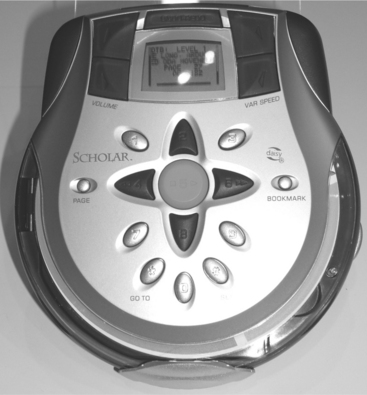
One of the challenges in any electronic format is standardization. Different countries have different recording formats for talking books on tape, and there are many formats for word processors in digital form. For this reason an international group, the DAISY Consortium (www.daisy.org) has developed an international standard for digital talking books (Kerscher and Hansson, 1998). This standard includes production, exchange, and use of digital talking books. The goal of the DAISY Consortium is to promote the use of digital books that comply with an international standard. The members of the consortium are associations and organizations across the world that are involved in the provision of reading materials for individuals who are blind. The DAISY standard is hardware platform and operating system independent, and it makes use of the Web accessibility standards developed by the World Wide Web Consortium (W3C). There are several on-line sources for books in the DAISY format (for example, Benetech, www.bookshare.org; National Library Service, U.S. Library of Congress, www.loc.gov/nls; Recording for the Blind and Dyslexic, www.rfbd.org; Dolphin Audio Publishing, www.dolpjinauiopublishing.com). These sites have thousands of titles, including books for children and adults, textbooks, and newspapers. Many of the books are available in both DAISY and Braille Reading Foundation (BRF) Grade II braille format for printing books or using refreshable braille displays. Players for DAISY format CDs are available from several manufacturers (for example, Telex, Burnsville, Minn., www.telex.com; FSReader, Freedom Scientific, St. Petersburg, Fla., www.freedomsci.com; EaseReader, Dolphin Audio Publishing, www.dolphinaudiopublishing.com; Victor, Human Ware, Concord, Calif., www.humanware.com). A typical DAISY format reader is shown in Figure 8-11.
Synthetic Speech Output Reading Machines.
Auditory output from automatic reading machines is provided by synthetic speech devices. Types of speech synthesis and conversion of ASCII text into speech (called text-to-speech) is discussed in Chapter 7. The use of speech synthesis in reading machines for persons with visual impairments or learning disabilities uses the standard types of speech synthesis. There are a variety of both hardware- and software-based speech synthesizers for use with reading programs or aids (see Chapter 7). Because many reading devices are based on PCs, screen readers (programs that provide synthetic speech output from the computer screen, see Chapter 7) can also be used as reading machines.
There are several ways in which information can be converted to ASCII form for use by a screen reading program. The most common is to use a scanner and OCR program as discussed in this section. A second approach is to obtain CD-ROMs that contain computer-readable written material (Dixon and Mandelbaum, 1990). There are services that make books on disk available to persons who are blind. The computer disks have files that can be loaded into a word processor and then read by using a screen reader program. The CD-ROMs provide significantly greater storage than floppy disks, and they are made available to blind readers by publishers. Dictionaries, almanacs, and encyclopedias are among the many publications available in this format. A major advantage of this type of storage is the indexing and searching capability provided by CD-ROM technology. There is now a large and growing amount of literature (especially the classics) available on the Internet in electronic form (called e-text). Many newspapers put their whole issues on the Internet, as do on-line news and sports services. Individuals who are blind can read this information by using screen readers and accessible Web browsers.
Access to Visual Computer Displays for Individuals Who Are Blind
For individuals who are blind and need to access a computer, the problem is one of providing input through an alternative sensory pathway, auditory or tactile or both. Auditory output is provided by voice synthesizers (hardware or software based), and tactile output is generally provided by refreshable braille displays and embossed hard copy.
Systems that provide voice synthesis output for blind users are generally referred to as screen readers. A computer user who is blind should be able to access all the same graphics and text as a person who is sighted. There are a variety of commercially available speech synthesizers, and many screen readers use their own proprietary speech synthesis software and computer sound cards, as well as compatibility with refreshable braille displays. Windows includes a basic function screen reader utility, Narrator, and a Toggle Keys in its accessibility options that are accessed through the control panel. These features are described in Table 8-1. The narrator program is a text-to-speech utility for people who are blind or who have low vision; it reads text that is displayed on the screen in an active window or menu options or text that has been typed into a window. The Toggle Keys option generates a sound when CAPS LOCK, NUM LOCK, or SCROLL LOCK key is pressed.
A sighted computer user will often scan a screen for a specific piece of information or to obtain a sense of the continuity and flow of the written material, which includes looking for specific screen attributes (such as highlighted or underlined material and features of the GUI). For the user who is blind, duplicating this capability requires that the adapted output system provide reading of text and descriptions of graphics. Finally, screen reader programs provide on-screen messages or prompts for the user input during program operation. Graphic characters should have text labels attached to them. These can be read to the consumer by use of speech synthesis software. Currently available screen reader programs provide navigation assistance by keyboard commands. Examples of typical functions are movement to a particular point in the text, finding the mouse cursor position, providing a spoken description of an on-screen graphic or a special function key, and accessing help information (for example, Screen Reader2 from IBM, Special Needs Systems, Austin, Tex., www.rs6000.ibm.com/sns; Jaws for Windows from Freedom Scientific, St. Petersburg, Fla. www.freedomsci.com; Zoom Text Xtra Level 2 from AI Squared, Manchester Center, Vt. www.aisquared.com; Supernova and Hal from Dolphin Computer Access, San Mateo, Calif. www.dolphinusa.com; Magnum and Magnum Deluxe from Artic Technologies, Troy, Mich.; Protalk32 for Windows, Biolink Computer, Vancouver, Canada, www.biolink.bc.ca; Window Eyes from GW Microsystems, Fort Wayne, Ind. www.gwmicro.com/gwie).
Screen readers also monitor the screen and take action when a particular block of text or a menu appears (Lazzaro, 1999). This feature automatically reads pop-up windows and dialog boxes to the user. Screen readers can typically be set to speak by line, sentence, or paragraph. Other features are also available; for example, Jaws for Windows (Freedom Scientific, St. Petersburg, Fla., www.freedomsci.com) allows the user to read the prior, current, or next sentence or paragraph in all applications by using specified keystrokes (e.g., read prior sentence = ALT + UP ARROW; read next sentence = ALT + DOWN ARROW; read current sentence = ALT + NUM PAD). The user may use the standard Windows method of switching between applications (ALT + TAB). There are also special functions for individual programs such as those in Microsoft Office (Microsoft Corporation, Redmond, Wash.), Web browsers, and others. Some screen readers also provide a “window list” in which applications that are running appear in alphabetical order. This allows the user to switch between, close, or see the state of any active application. This is a faster way to switch between applications when a user has many windows open, rather than moving the cursor to a pull-down menu or “close” box. Hal (Dolphin Computer Access, San Mateo, Calif., www.dolphinusa.com) is a screen reader designed to operate with the visible information on the screen. Hal recognizes objects by looking for distinct attributes, shapes, borders, highlights, and so on. This is in contrast to using the standard labels of Windows, and it means that Hal is independent of whether an application has obeyed the rules of Windows programming. Hal recognizes objects by their final shape on the screen, rather than by their Windows attributes. The advantage of this approach is that once set up for one application, all similar-looking applications will talk correctly without any adjustment to the settings. Hal also includes a braille layout mode. These are only examples of product features; as is true for any computer application, rapid advances are common.
Many screen readers have applications for specific types of programs, procedures, or applications. A script is a small computer program that contains sequences of individual steps used to activate and control a wide variety of computer processes. Each script or function contains commands that tell the screen reader how to navigate and what to read under different conditions. Some screen readers allow modification of the scripts (for example, JAWS, Freedom Scientific, St. Petersburg, Fla., www.freedomsci.com). Script files can be modified, or entirely new commands can be used to make any application accessible with the screen reader. Scripts can also be created to automate daily tasks or for specific applications (e.g., Web browser, spreadsheet). By analyzing what actions are taking place in a given application, the script can optimize the screen reader for the user.
Window-Eyes (GW Microsystems, Fort Wayne, Ind., www.gwmicro.com/gwie) uses the Microsoft Excel DOM (document object model) to communicate directly with Microsoft Word and Microsoft Excel and includes the ability to save specific settings (i.e., headers and totals and monitor cells) for specific documents. VIRGO 4 (Baum, Germany, www.baum.de/) uses Microsoft Visual Basic as a scripting language to customize the screen reader for specific applications. Users who have computer programming skills can write their own scripts to automate tasks or to optimize their readers for specific applications.
These applications all require that the special script or application file be developed individually for a particular application. An alternative approach is to develop software that automatically develops a script based on what the user is doing at the time by observing his or her actions (Ma et al, 2004). The software also informs the user when a script exists that is relevant to the application that is being used. Examples of scripts that might be developed are finding a weather forecast or a stock price. The Intelligent Screen Reader (Ma et al, 2004) works with the built-in macro recorder of JAWS and a script generation interface to automatically generate a script with plan recognition networks (PRNs). PRNs are probabilistic models of procedures produced by an automated synthesis of plan recognition networks (Huber and Simpson, 2004). The key to this software approach is the ability to identify the user’s intentions as the task is being performed. The advantage of this approach is that the user does not need to learn the script programming method and also does not need to depend on the prestored scripts developed by the manufacturer.
Hard copy (printed) output also must be modified for persons who are blind. Typically, braille output is produced by embossers. One approach is to design and build a printer specifically for braille embossing from a computer. Embossers are available in both single- and double-sided formats. They include both portable and stationary systems with a variety of printing speeds from 15 to 50 characters per second and with line widths of 32 to 40 characters (single-sided) and 55 characters per second with 56 character line widths (double-sided) (Enabling Technologies, Jenson Beach, Fla., http://www.brailler.com/index.htm; Pulse Data Human Ware, Concord, Calif., http://www.pulsedata.com; GW Microsystems, Fort Wayne, Ind., https://www.gwmicro.com/; View Pluse, Corvallis, Ore., http://www.viewplus.com). The Paragon Braille Printer (Pulse Data Human Ware, Concord, Calif., http://www.pulsedata.com) is an embosser that prints on tractor-feed paper from 20 to 100 pounds in weight and up to 15 inches in width. The speed of the Paragon is 40 characters per second, which enables it to print more than 120 pages per hour. Vinyl and aluminum sheets can also be embossed to signs with braille markings. The Mountbatten Brailler (Quantum Technology, Sydney, Australia, http://www.quantech.com.au/index.html) is a braille writer with a braille keyboard, built-in memory, autocorrection features, and extensive formatting controls. The Mountbatten can be used as an embosser for a computer or as a braille translation device. It can translate from print into braille or braille into print and is available in both electric and battery-operated models. All these embossers include internal software that accepts standard printer output from the host computer and converts it to either six- or eight-cell braille embossed on heavy paper. American Thermoform Corporation (La Verne, Calif., http://www.americanthermoform.com/index.html) makes a variety of braille embossers. These cover applications from mass production to systems for individual users.
Braille translation programs are available from Duxbury Systems (Westbury, Mass., http://www.duxburysystems.com/). These programs convert ASCII text in many forms (word processor text files, spreadsheets, database files) to Grade 2 braille in hard copy form. Translation of braille cells to text characters and vice versa is not typically on a one-for-one basis. Translation is especially complicated with Grade 2 braille because contractions are used. Formatting of braille pages also involves issues beyond those affecting print. Duxbury Braille Translation provides translation and formatting capabilities to automate the process of conversion from regular print to braille (and vice versa) and also provides word processing functions for working directly in braille as well as print format. Braille characters can be displayed on the screen for proofreading before printing. Operation of this program has the same features (e.g., menus and screens) for Macintosh and Windows. This software is typically used both by individuals who do not know braille and those who do. The Duxbury Braille Translator allows the user to create braille for schoolbooks and teaching materials, office memos, bus schedules, personal letters, and signs compliant with the Americans With Disabilities Act. The software allows importing of files from popular word processors, including Microsoft Word and WordPerfect, and from HTML sources, as well as others.
Studies of Computer Use by Visually Impaired Adults
It is not surprising that computer use by individuals who are blind or who have low vision is less than by nondisabled individuals. Individuals with visual disabilities have less access to the Internet, are on-line less often, and are more likely to be on-line from work than from home than are individuals without disabilities (Gerber and Kirchner, 2001). Severity of impairment and existence of multiple impairments each reduce the access and use further. Individuals under 65 years of age have greater use and access than do those older than 65 years. This finding is important given the high prevalence of visual impairment in the population more than 65 years old. People who are employed are more likely to use computers and the Internet, regardless of whether they are disabled, and the percentage of people using computes is almost identical for the two groups.
To obtain more detailed information about the computer usage patterns of individuals who have visual impairments, Gerber (2003) conducted a series of focus groups. Four focus groups were used, three at national conferences and one based on subscribers to a technology and visual impairment publication (Access World: Technology and People With Visual Impairments, American Foundation for the Blind, New York, http://www.afb.org/). Half the participants reported no usable vision, and the other half had variable amounts of vision. Half the respondents had been blind since birth, 85% had some university education, and 73% were employed. This sample represents the group of visually impaired individuals who use computers and the Internet, but it is not representative of the broader visually impaired community. The leading reason why technology was important and helpful was access to employment and the creation of flexibility in finding work. For some individuals computer access allowed telecommuting and access to employment from home. The computer also allowed employed individuals to create a cultural identity by being successfully employed. The second major benefit of computer use identified was access to information, including newspapers and magazines as well as Web-based sources. This benefit is only recently available because more and more information is available digitally through the Internet. Independence in obtaining this information was a major benefit identified. Respondents talked about how rewarding it was to read for themselves using technology rather than have someone read to them. Improvement in writing skill was identified as a benefit of computer use. A final benefit identified by the focus group participants was the social connections made through the Internet, such as independently sending and receiving e-mail using adapted computers. Participation in on-line discussion groups related to their disability or to other topics of interest helped remove feelings of isolation and loneliness. Lack of training and not having accessible training materials were identified as a major barrier to computer use. Getting help in an accessible form was identified as a major difference between users who had visual impairments and those who did not. Being shut out of advances because of lack of accessibility, especially as computers and software change, was a major fear for many of the participants. For example, if a new version of Windows is developed, it may not be compatible with the accessible screen reader or braille display the person has been using. This issue is discussed further later in this chapter.
As more and more appliances, entertainment products, and productivity tools for work become electronically sophisticated with many new features, people with visual impairments worry that they will be left behind because of lack of access. Universal design (see Chapter 1) principles become very important in this context.
Because training was identified as a major barrier to computer access, Wolfe (2003) conducted a survey of public and private rehabilitation agencies in the United States to determine the availability of training specifically related to individuals with visual impairments. Group technology-related training (general and job related) was provided more frequently than individual training by both public and private agencies. A variety of products including screen readers, screen magnifiers, Web browsers, CCTVs, and electronic note takers were included in the training. These are all described in this chapter. The demand for training was reported to be far greater than the agencies’ ability to provide training. The major training challenges reported by Wolfe were changes in technology requiring staff upgrading, lag between new advances in general consumer products and accessible versions, availability of computers and other equipment to use in training, and a shortage of qualified trainers.
To learn more about the need for and value of training, a series of focus groups were held with visually impaired adults who had received training and with trainers (Wolfe, Candela, and Johnson, 2003). The adequacy of training was clustered into positive, neutral, and negative groups. Positive comments focused on the overall quality of the training, greater self-confidence of the trainees after training, and (to a lesser extent) the quality of the trainers. Neutral comments reflected adequacy of the training in general rather than specific areas of training. Negative comments fell into six areas, including (1) training was too short or too infrequent, (2) too few computers were available for hands-on practice, (3) training was not relevant to technology available on the job, (4) the pace of training was too slow or too fast, (5) material was presented at too basic a level, and (6) there was too much variability in trainee experience that limited content that could be covered. The trainers focused on issues of curricular content and trainee preparation for training, but there was no consistency in either of these areas. The need to stay abreast of technology changes was also a challenge listed by this group.
VISUAL ACCESS TO THE INTERNET
As the Internet becomes more and more dependent on multimedia representations involving complex graphics, animation, and audible sources of information, the challenges for people who have disabilities increase. The most obvious barriers are for those who are blind. People who have learning disabilities and dyslexia also find it increasingly difficult to access complicated Web sites that may include flashing pictures, complicated charts, and large amounts of audio and video data. It is estimated that as many as 40 million persons in the United States have physical, cognitive, or sensory disabilities (Lazzaro, 1999). Thus, the importance of making the Internet accessible to all is great.
Many of the approaches to computer input and output discussed in this chapter are important to the provision of access to this information for persons who have disabilities. Two useful sources of information are the W3C Web Accessibility Initiative (WAI, www.w3.org/WAI) and the Trace Center (www.trace.wisc.edu/world/web). Vanderheiden (1998) provides a comprehensive review of the issues related to Internet access by persons with disabilities. He gives both an overview of current approaches and prospects for future developments on the basis of emerging technologies.
User Agents for Access to the Internet
Access to the Internet must be independent of individual devices. This device independence means that users must be able to interact with a user agent (and the document it renders) using the input and output devices of their choice on the basis of their specific needs. A user agent is defined as software to access Web content (www.w3.org/wai). This includes desktop graphical browsers, text and voice browsers, mobile phones, multimedia players, and software assistive technologies (e.g., screen readers, magnifiers, general input device–emulating interfaces that are used with browsers.
Input devices that are used for Internet access include many of those described earlier in Chapter 7. Mouse and mouse-alternative pointing devices, head wands, keyboards and keyboard alternatives such as on-screen keyboards, braille input keyboards, switches and switch arrays, and microphones can all serve as input devices for user agents. Output devices for Internet access are also those described in this chapter. In addition to the typical computer monitor and audible output, screen readers, screen magnifiers, braille displays, and speech synthesizers are the most commonly used output devices for user agents.
The W3C WAI project is developing guidelines to inform user agent developers of design approaches required to make their products more accessible to people with disabilities. The W3C WAI project also provides practical solutions for the development of accessible user agents on the basis of existing and emerging technologies. These resources will also increase usability for all users. The W3C initiative emphasizes the use of designs that facilitate compatibility between graphical desktop browsers and dependent assistive technologies (e.g., screen readers, screen magnifiers, braille displays, and voice input software). These developments will also benefit those who do not use the standard keyboard and mouse to access the Internet (e.g., those who are mobile and access the Web through palmtop computers, telephones, and auto terminals) (Vanderheiden, 1998).
These guidelines encourage designers of user agents to consider that users access documents in a variety of contexts. Potential users may be unable to see, hear, move, or process some types of information easily or at all. Users may also have difficulty reading or comprehending text, and they may not have or be able to use a keyboard or mouse. They define two classes of user agents. The first are commonly used graphical desktop browsers; their role in obtaining accessibility is discussed later. The second type of user agent is the one who is dependent on other user agents for input or output. These include many of the technologies discussed in this chapter, such as screen magnifiers, screen readers, alternative keyboards, and alternative pointing devices. The guidelines being developed focus on interoperability between these two classes of user agents.
The W3C WAI user agent guidelines are based on several principles that are intended to improve the design of both types of user agents. The first is to ensure that the user interface is accessible. This means that the consumer using an adapted input system must have access to the functionality offered by the user agent through its user interface. Second, the user must have access to document content through the provision of control of the style (e.g., colors, fonts, speech rate, speech volume) and format of a document. Many of the approaches described earlier (e.g., easy scrolling, and viewing windows that follow changes) help ensure access to content. A third principle is that the user agent help orient the user to where he or she is in the document or series of documents. In addition to providing alternative representations of location in a document (e.g., how many links the document contains or the number of the current link), a well-designed navigation system that uses numerical position information allows the user to jump to a specific link. Finally, the guidelines call for the user agent to be designed according to system standards and conventions. These are changing rapidly as development tools are improved. Communication through standard interfaces is particularly important for graphical desktop user agents, which must make information available to assistive technologies. Technologies such as those produced by the W3C include built-in accessibility features that facilitate interoperability. The standards being developed by the W3C WAI provide guidance for the design of user agents that are consistent with these principles. The guidelines are available on the W3C WAI Web page (www.w3.org/wai).
How Web Pages Are Developed
Web pages are a mixture of text, graphics, and sound. These pages are typically developed by using a variety of programming languages. Hypertext markup language (HTML) has become a standard for Web design. HTML is a nonproprietary format that can be created and processed by a range of tools, from simple plain text editors in which the HTML codes are entered from scratch to sophisticated authoring tools. Many word processors convert files from the word processor format to HTML.
The W3C produces recommendations for HTML. These are specifications for developers, and they include guidelines for accessibility and multimedia (www.w3.org/MarkUp). HTML guidelines also provide access to style sheets. Cascading style sheets allow a Web page to be viewed in any layout chosen by the user (Lazzaro, 1999). Style sheet layouts that are compatible with screen magnifiers, screen readers, and braille are available. The W3C recommends that, wherever possible, developers use a style sheet for formatting their presentation and use HTML purely for structural markup. It is important that developers include options that allow style sheets to be turned off for those people using browsers that do not support style sheets. By using HTML as a standard, problems with file incompatibilities (e.g., from different word processors) can be avoided. One example of an HTML accessibility standard is the alt=“text” HTML attribute. This function associates text with each graphic object. By pressing the ALT key on the keyboard, the text associated with the object is displayed. This can also be linked to a screen reader or braille output device.
Because of its capability of allowing a programmer to develop a single version of an application that can be used on a variety of computers and devices, the Java language (Sun Microsystems, java.sun.com) is widely used in programming for the Internet. Johnson, Korn, and Walker (1999) describe the Java platform and its accessibility features. The Java Accessibility Utilities provide linkages to help assistive technologies provide access to the GUI by toolkits that implement the Java accessibility application programming interface, a set of packages of software components that provide the basis for building functions such as input and output, data structures, system properties, date and time, internationalization, networking, user interface components, and applets (small application programs that can be run within other applications). Details of these accessibility functions are described by Johnson, Korn, and Walker (1999) and are available at the Java Web site.
Web Browsers
Web browsers for general use incorporate accessibility features to varying degrees. Because most are compatible with Windows, any other accessible products that are also compatible with Windows should work with the browser. That is, however, pure theory, because there are many features of browsers that are independent of the operating system. Thus, the accessibility of browsers varies.
Lynx (hosted by Internet Software Consortium, http://lynx.isc.org/) is a text-based browser for the Internet. It is usable by individuals who are blind because it is compatible with braille or screen reading software. Lynx also offers navigational functions.
Microsoft Internet Explorer (Seattle, Wash., www.microsoft.com/enable/) contains a range of features for people with disabilities. These include keyboard navigation (among links, frames, and client-side image maps), optional display of text descriptions with images, multiple font sizes and styles, and an optional disabling of style sheets so that the user’s font, color, and size settings (the user’s personal style sheet) will be used. This allows turning sounds, videos, pictures, and backgrounds off or on. Tool bar button size and icon size, text color, font, and size are all adjustable. Automatic fill-in of user names, passwords, Web addresses, and routine forums is also included. Explorer also uses the high contrast function to increase legibility and incorporates Microsoft Active Accessibility to provide information about the document.
Many of the screen readers described earlier have features that take advantage of Internet Explorer’s capabilities. Examples include Hal, JAWS for Windows, and Window Eyes. The features that provide access to the Windows operating system are also used to provide access to Web pages. Many of these screen readers are also compatible with other general-purpose browsers such as Netscape.
Netscape Navigator (Mountain View, Calif., www.netscape.com) allows for enlargement, variation in, and colors of fonts. The IBM Home Page Reader speaks Web-based information with a text-to-speech speech synthesizer. Home Page Reader provides audible information from Windows desktop, e-mail and other applications, and Web pages. This information includes tables, frames, forms, and alternate text for images. Home Page Reader speaks information regarding page links or ALT text for objects like images and image maps. The user can navigate and read complex tables, such as television listings, using table navigation mode. In table navigation mode, the user can easily read table rows, columns, and cells, including table cells that span multiple rows or columns. Marcopolo is a plug-in for the Netscape browser that uses a standard PC soundboard to provide access to the Internet by using speech and musical sounds.
Making Web Sites Accessible
The W3C WAI has also developed guidelines for creating accessible Web sites. Their Quick Tips are shown in Box 8-2. These guidelines particularly address the way in which Web sites are laid out and the programming that is done to create the Web site. The guidelines facilitate access to the Web page by people using alternative input or output methods and give designers guidelines for making their content accessible to individuals who have visual, auditory, or manipulation disabilities. The technical terms that appear in the guidelines (e.g., cascading style sheets, HTML, scripts, applets) are defined on the W3C WAI home page.
Vanderheiden and Chisholm (1999) describe the development of authoring guidelines for Web site development. They emphasize the concept of having pages that “transform gracefully” across users, techniques, and situations. By transforming gracefully, they mean that a Web page remains stable regardless of what user, technological, or situational constraints occur. They cite the example of a person with low vision needing to enlarge the entire screen to 36-point text. In this case the author-determined font size will be overridden. They list three guidelines to help authors create documents that transform gracefully. First, authors should ensure that all the information available on the page can be perceived entirely visually and entirely auditorially, as well as being available in text. Second, they recommend that authors separate the content of the site (what is said) and the structure of the content (how it is organized) from the way the content and structure are presented (how the content is accessed by a user). Finally, they advise Web authors to ensure that all pages are operable with a variety of hardware, such as systems without mice, with small or low resolution, or with only speech or text input. They relate these recommendations to the W3C WAI authoring guidelines.
WebXACT is a free on-line service that allows testing of single pages of Web content for quality, accessibility, and privacy issues (http://webxact.watchfire.com). To analyze a Web site, the URL of the page to be examined is entered into the CAST Web site. Bobby displays a report that indicates any accessibility or browser compatibility errors found on the page. Once the site receives a “Bobby Approved” rating, the Bobby Approved icon can be displayed on the site. The report includes both those things that can be checked automatically and a list of questions regarding checkpoints that must be validated manually. This information must be submitted to CAST before the approval is granted.
Making Mainstream Technologies Accessible
As cellular telephones become more powerful, approaching the power of PCs, there will be significant advantages for people with disabilities, especially those with low vision or blindness. Fruchterman (2003) describes four changes that will occur to make this possible: (1) standard cell phones will have sufficient processing power for almost all the requirements of persons with visual impairments, (2) software will be able to be downloaded into these phones easily, (3) wireless connection to a worldwide network will provide a wide range of information and services in a highly mobile way, and (4) because many of these features will be built into standard cell phones, the cost will be low and reachable by persons with disabilities. A major change in the cell phone industry that will underlie these advances is a move away from proprietary software to an open source approach, much like PCs of today. This will lead to a greater diversity of software for tasks such as text-to-speech output, voice recognition, and optical character recognition in a variety of languages. Because the operating system will be an open source, many applications for people with disabilities can be downloaded from the Internet. It will be possible for a user to store customized programs on the network and download them as needed from any remote location. Downloading a DAISY reading program into a cell phone can provide access to digital libraries. Outputs in speech or enlarged visual displays can be added as needed by the user. Once the cell phone is accessible and has the capability of adding software for specific functions, a huge range of options will be opened up for the person with a visual impairment. These include calendar/appointments, personal contact database, note taking, multimedia messaging, and Web browsing. With a built-in camera and network access, a blind person could obtain a verbal description of a scene by linking to on-line volunteers who provide descriptions of images.
Although many of these applications are still more in the future than in the present, advances of this type will occur rapidly. One reason for the optimism surrounding these types of advancement is the increasing application of universal design in information technology products (Tobias, 2003). Universal design (see Chapter 1) principles call for mainstream technologies to be accessible to a wide range of individuals with and without disabilities. In the information technology area, there are also government regulations (see Chapter 1 for US legislation) that promote accessibility. Tobias (2003) describes these regulations and the challenges in implementing them. When mainstream technologies use open source operating systems, network-based accommodations can be accessed by users without specially designed equipment. This can reduce cost and thereby increase availability. These applications include automatic teller machines (ATMs), cell phones, vending machines, and other systems that are encountered on a daily basis (Tobias, 2003).
MOBILITY AND ORIENTATION AIDS FOR PERSONS WITH VISUAL IMPAIRMENTS
The requirements of devices that aid mobility for persons with visual impairments differ significantly from those for reading. Mobility presents notable problems for persons with visual impairments, and the blind traveler uses many methods to orient himself or herself to the environment and move safely within it (American Foundation for the Blind, 1978). Attention to sensory inputs of smell, sound, air currents, and surface texture alert the blind person to the terrain and environment, and a blind person can learn to pick up cues regarding objects. Sound cues are derived from reflections, sound shadows, and echo location. Temperature changes are also important. For example, passing a window on a cold day or passing under a canopy on a warm day provides information that is used in orientation. Odors from restaurants and crowds and other strong smells also provide information. Input regarding the texture of a sidewalk or grass is provided by the kinesthetic sense. Finally, persons with visual impairments also use travel aids, some of which are discussed in this section.
Reading Versus Mobility
There are several important differences between sensory input for reading and for mobility (Mann, 1974). Inaccuracies in reading result in loss of information, but errors in orientation and mobility can result in injury or embarrassment. In a reading aid the input is constrained. This means that the information to be sensed is always in a text or graphics form. Although there are differences in text fonts and reading needs, the differences across all reading materials are relatively small. In mobility, however, the range of possible inputs is large. The blind traveler needs to avoid obstacles as varied as a roller skate and a tree. The environment changes frequently (e.g., a chair is moved to a new location), and the blind person must be able to sense these differences. Nye and Bliss (1970) point out that the obstacles of most concern to blind travelers are bicycles, streets, posts, toys, ladders, scaffolding, overhanging branches, and awnings. We define the environmental input required for mobility as being unconstrained because these changes are not predictable and cover a wide range of inputs. To be successful, the design and specification of mobility aids for blind persons must take into account these factors. Orientation refers to the “knowledge of one’s location in relation to the environment” (Scadden, 1997, p. 141). There are five approaches used to aid blind travel: a sighted guide, dog guides, the long cane, electronic aids, and alternative mobility devices. The last three are discussed in this section.
Canes.
The most common mobility aid for persons with visual impairments is the long cane (Farmer, 1978). The standard cane consists of three parts: the grip, the shaft, and the tip. The entire cane is designed to maximize tactile and auditory input from the environment. The grip (which forms the handle) is made of leather, plastic, rubber, or other materials that easily transmit the tactile information to the user’s hand. The shaft and tip work together to sense and then relay the tactile information to the grip. The tip (especially a metal tip used on a hard surface such as concrete) is a major source of high-frequency auditory input used by pedestrians who are blind to detect obstacles and landmarks by echolocation. A careful balance is obtained between sufficient rigidity to resist wind and bending and adequate flexibility to transmit the tactile and auditory sense of the surface texture.
Many blind travelers use folding or telescoping canes, which offer the advantage of easy storage when not in use. Typically these are made of composite materials such as carbon fiber. When collapsed, they can be placed in a pocket or purse.
The primary advantages of canes are the low cost and the simplicity of use. They have significant limitations, however. One of these relates to the range over which sensory information is obtained. In use, the cane is moved in an arc approximately one step in front of the user. Any obstacles outside this range are not detected, and in some cases it is difficult for the blind traveler to adjust and avoid an obstacle within the space of only one step. A second limitation is that the cane only senses obstacles that are below waist level. In many cases, objects above knee level are not sensed until it is too late. For example, if there is a table in the path of the user, the cane may pass between the table legs, under the tabletop. The user will be unaware of the table’s existence until he or she runs into it. Obstacles that are above waist height are also not sensed. Those of most concern are head-height obstacles such as tree branches.
Alternative Mobility Devices.
The term alternative mobility device is used to describe a variety of methods used to aid mobility for individuals who are blind, particularly young children (Skellenger, 1999). Many of these devices are custom made from items such as hula hoops, toy shopping carts, PVC attached to an arm, and similar objects. Skellenger (1999) defines alternative mobility devices as “travel propelled devices other than the long cane that are held relatively statically in front of the traveler and are used primarily to detect obstacles and changes in depth” (p. 517). Skellenger found that these devices are widely used with children under the age of 5 years by orientation and mobility trainers, but they are rarely used with adults. The alternative devices are used primarily for training and are generally replaced by one of the other means of mobility assistance.
Electronic Travel Aids for Orientation and Mobility.
Electronic travel aids (ETAs) have been developed to overcome some of the limitations of the long cane. These aids supplement rather than replace the long cane and guide dog. They are designed to provide additional environmental information over that sensed with a cane and to detect those obstacles typically missed by the long cane. ETAs also provide information that can assist with orientation for pedestrians who are blind (Scadden, 1997). We discuss both these applications in this section.
ETAs have the three components, as shown in Figure 8-1: an environmental interface, an information processor, and a user display. The environmental interface is typically both an invisible light source and a receiver (usually in the infrared range) or an ultrasonic transmitter and receiver. Both these technologies are similar to those used in television remote controls. The information processor may be a special-purpose electronic circuit or a microcomputer-based device. The user display may be either an auditory tone of varying frequency (e.g., higher as an object gets closer) or a haptic interface. Haptic interfaces are those that provide tactile input by use of vibrating pins or motors. Zelek et al (2003) developed and tested a haptic glove with three separate motors providing vibration to the thumb, middle finger, or little finger, depending on whether an obstacle was to the right, center, or middle of the user. The vibration of the motors was updated two to three times per second. The evaluation of the glove indicated that blind subjects navigated an unknown space efficiently (measured by the length of the path) and accurately (measured by avoidance of obstacles). Zelek et al (2003) also described the concept of visual-tactile mapping. This type of interface could also be used to localize the source of auditory information such as speech descriptions of an object, landmark, or building.
Electronically Augmented Canes.: Over the years several alternatives have been developed to extend the range of the standard cane and add the capability of detecting overhangs. The addition of electronic obstacle sensing also provides better sensing of drop-offs. Figure 8-12, A, illustrates the principle of operation of one approach, called the laser cane (Nurion-Raycal, Paoli, Pa., http://www.nurion.net/). Three narrow beams of laser light are projected from the cane. One beam is directed upward; it detects obstacles at head height about 2.5 feet in front of the cane tip. If an object is in the path of the beam, the light is reflected to a receiver and a high-pitched tone is emitted. Another beam detects objects directly in front of the traveler at a distance of either 5 or 12 feet (depending on the setting of a switch on the cane handle). If an object is encountered in this beam, the reflected signal causes the vibration of pins. The pins are located in the handle of the cane, where the fingers can comfortably rest on them (Figure 8-12, B). The final beam is aimed downward, and it is intended to detect drop-offs deeper than 5 inches (e.g., stairs or curbs) located about 3 feet from the cane tip. If the reflected beam is interrupted (because the drop-off does not reflect light in the same way as with a level surface), then a low-frequency tone is emitted. In some cases the auditory and tactile signals from the laser cane are misleading to the user (Mellor, 1981). For example, the laser beams could travel through a plate-glass door or window without being reflected, and the glass would not be detected. Nonglass portions of the door (e.g., frame or handle) were generally detected, but they had to be recognized as part of a door on the basis of laser cane signals. Highly reflective shiny surfaces also provided confusing reflections to the cane user.
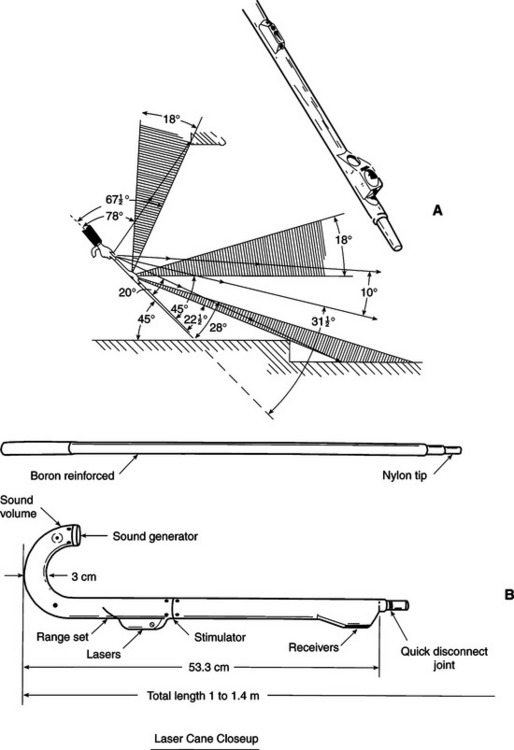
Figure 8-12 The laser cane. A, The triangulation method used. B, The major components. (From Nye PW, Bliss JC: Sensory aids for the blind: a challenging problem with lessons for the future, Proc IEEE 58:1878-1879, 1970.)
A current ETA based on the cane is the UltraCane (Sound Foresight LTD, Barnsley, United Kingdom, www.ultracane.com), which uses ultrasound rather than laser sensing. The UltraCane, shown in Figure 8-13, A, provides all the information normally obtained from the long cane and adds two ultrasound beams and sensors. One detects objects directly in front and one detects objects at head height. It comes in seven different lengths from 105 cm (41 inches) to 150 cm (59 inches). The ultrasound beam avoids the problems of transparent glass encountered by the laser cane because the ultrasound beam is reflected from glass or shiny surfaces without distortion. The user display (Figure 8-13, B) provides tactile feedback with three vibrating pins located on each side and in the middle to indicate where the detected object is located. The intensity of the vibration indicates how close the object is. In contrast to the earlier laser cane, the UltraCane is collapsible and lightweight. It is used in the same way as the standard long cane. The user sweeps the cane in an arc in front as he or she walks. Although it is not quite as responsive as a standard long cane, primarily because of the added electronics in the handle, the laser cane can also provide conventional tactile and auditory information. One major advantage of the UltraCane is that it is fail safe; if the batteries run down or an electronic failure occurs, the cane can be used like a standard long cane. The laser cane was also used during mobility training, helping the trainee understand how to hold the cane correctly and move it in the correct arc (Mellor, 1981). The UltraCane can be used in a similar fashion. After the training is complete, the trainee can choose either to use the standard cane or to continue with the UltraCane cane. The UltraCane can also provide important information for a congenitally blind child regarding the size of objects and their location in space.
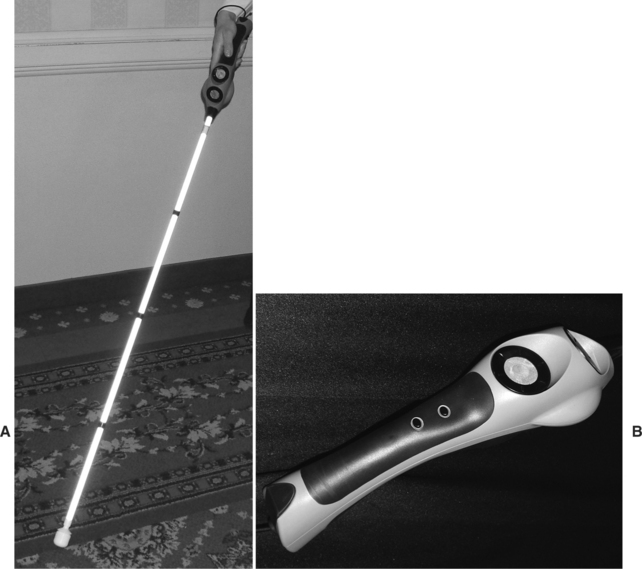
Figure 8-13 A, The UltraCane provides all the information normally obtained from the long cane. B, Two ultrasound beams and sensors are built into the handle.
There are several disadvantages to the UltraCane cane. The most significant of these is the cost/benefit ratio. The UltraCane is approximately eight times more expensive than the long cane, and each user must decide how important the additional information received from the UltraCane is to his or her work, lifestyle, or safety.
Another ETA based on the long cane is the EasyGo (Q-tec B.V., The Netherlands, www.q-tec.nl/uk/easygo.htm) ultrasound transmitter/sensor that can be attached to a standard long cane. The sensor is aimed forward. When an obstacle is detected by the ultrasound beam, a ring on the handle provides tactile feedback to the user through a ring, which is integrated into the handle. During use, the user’s finger rests on the ring, which rotates around the grip when an object is detected. The user can use the cane like a standard long cane while walking. Two ranges are available from the ultrasound sensor by turning the ring to the right (2.5 meters) or left (4 meters).
Ultrasonic Binaural Sensing.: Several devices are intended for use as adjuncts to the long cane. One of these is the Sonic Pathfinder (Perceptual Alternatives, Melbourne, Australia, www.ariel.ucs.unimelb.edu.au). This device has five ultrasonic transducers that are mounted on a headband. The two transmitters send out an ultrasound beam that covers the user’s pathway. The three receivers (one pointing left, one right, and one straight ahead) receive echoes when the ultrasound beam is reflected from an object in the user’s path. The device is controlled by a microcomputer that processes the echoes and converts them to an audible output. The output is fed to the right, left, or both earpieces, depending on the source of the echo. To simplify the information provided, only the echo of the nearest object is displayed to the user. Priority is also given to objects that are directly in front of the user. The output of the device can be explained by imagining walking toward a wall. The user hears in both ears the notes of the musical scale descending in order. For every 0.3 meters (1 foot), the pitch drops by one musical note. When the tonic note of the scale is reached, the user is within arm’s length of the object. Likewise, if an object is to the right, a tone of constant pitch is played in the right earpiece as long as the user remains at the same distance from the object (say a wall). If the user moves closer to the wall, the pitch of the tone drops. The device is silent beyond a distance of 9 meters.
Clear Path Indicators.: Another type of ETA is designed to be a clear path indicator; that is, it provides signals to the user only if an object is detected in a field approximately 2 feet in diameter and 6 feet from the user (Farmer, 1978). The Polaron (Nurion-Raycal, Paoli, Pa., http://www.nurion.net/) is a device that is either worn on the chest or held in the hand. Ultrasound sensing is used to detect objects within 4, 8, or 16 feet. Feedback to the wearer is by either vibration of the unit or emission of a sound.
The device sends out an ultrasound (i.e., beyond the range of human hearing) beam that creates the clear path cone for detection of signals. This signal is similar to those used in many television remote controls and in electronic aids to daily living. If an object is in the ultrasound beam path, some sound is reflected back to the device, where it is detected. The length of time it takes the reflected sound to be detected indicates how far away the object is. For objects at a distance of greater than 6 feet, a low-frequency audible sound is emitted from a speaker (the user display). For objects between 3 and 6 feet away, the Polaron emits a series of clicks and a vibration that is felt on the chest. The amplitude (intensity) of the signals increases as the objects get closer. When an object is 3 feet away or less, the tactile vibration is transferred to the neck strap and a higher-pitched beeping sound is heard. In contrast to other ETAs, the Polaron is totally silent when there is no object in its path.
Because both hands are free, the clear path indicators can be used in conjunction with the long cane, and they can be used by a person who requires a wheelchair and needs both hands free for pushing. The combination of auditory and tactile input makes these devices suitable for persons who are both deaf and blind. The simplicity of the feedback provided to the user increases the applicability of these devices, and they can be used by children and adults (Mellor, 1981). However, children may use them more for training and to learn spatial concepts than as travel aids, and the children can use their free hands to reach out and touch objects they have detected. The simplicity of feedback also means that only limited information can be provided to the user, which can restrict the applicability of these devices. Mellor (1981) also points out that heavy clothing may make it difficult to feel the tactile vibration on the chest and to keep these devices aimed in the proper direction.
Miniguide.: Although the clear path indicators are intended to supplement the long cane, the Mowat sensor was a popular ETA used alone or with the cane. The Mowat sensor is no longer produced, but its functions have been incorporated into the Miniguide (Hill and Black, 2003). The Miniguide (GDP Research, Adelaide, South Australia, http://www.gdp-research.com.au/index.html; available in North America from Sendros, Davis, Calif., www.senderogroup.com/index.htm) is 80 mm long, 38 mm wide, and 23 mm thick (3 inches long, 1.4 inches wide, and 0.75 inches thick), about the size of a rectangular flashlight, and weighs less than 50 grams (about 2 ounces). It has an ultrasound transmitter and receiver that emit and receive ultrasound pulses in an elliptical pattern. When an object is detected in the ultrasound beam, the device begins to vibrate gently in the hand. The vibrations become faster for objects that are closer. The device is programmable to meet the needs of individual users. The device has five ranges: 26 feet (8 meters), 13 feet (4 meters), 6.5 feet (2 meters), 3 feet (1 meter), and 1.5 feet (half meter).
The normal use of the Miniguide is to scan the environment to locate specific familiar landmarks (e.g., a bus stop sign) or clear spaces such as doorways. It is small enough to be carried easily in a pocket or purse, and it is generally used to supplement other mobility and orientation devices. If two hands are used, it can detect overhangs with simultaneous use of the long cane. This may, however, be difficult for some persons. Mellor (1981) describes several unique uses of the Mowat sensor that also apply to the Miniguide. For example, it can be used when reaching if touching may be dangerous or undesirable, such as in a machine shop or hospital. It can also be placed on the floor and slowly rotated to find an object that has fallen. Finally, it can be placed on a desk used by a blind receptionist to indicate when someone is standing in front of the desk. The simplicity and relatively low cost of this device make it functional as a supplement to other orientation and mobility devices.
Wheelchair-Mounted Mobility Device for Blind Travelers.: The clear path indicator makes it possible for a person to use a wheelchair, but it is not designed specifically for this purpose. For example, it cannot detect walls to the side or drop-offs in front of the wheelchair. Because power wheelchairs can move more rapidly than people normally walk, the range for detection of objects must be increased to allow adequate time to change direction or to stop to avoid an obstacle. The Wheelchair Pathfinder (Nurion-Raycal, Paoli, Pa., http://www.nurion.net) uses a combination of laser and ultrasound beams to sense objects up to 8 feet in front of the user, walls (or other obstacles to the side up to 12 inches), and drop-offs (up to four feet away). Feedback is provided to the user through an audible tone, the frequency of which changes depending on the type of obstacle. There are two components, a master unit and a slave unit. These attach to brackets fastened on each side of the wheelchair. The frequency of the tone emitted by each unit is different, which allows the user to tell the direction of the obstacle.
As Owen (1990) describes, a device such as the Wheelchair Pathfinder can mean the difference between independence and dependence for a blind person who must use a manual wheelchair. Because it mounts on the wheelchair, it frees the hands and allows manual propulsion using the chair’s push rims. Because it is optimized to detect obstacles relative to the chair, it provides the most important information to the user and takes into account the ways wheelchairs are used (e.g., how long it takes to stop or turn). Owen provides a description of her transition from being ambulatory and using a long cane with no ETA to using a wheelchair combined with the Wheelchair Pathfinder ETA. When she was ambulatory, she found that the ETAs did not provide her with sufficiently greater information than her long cane, and she felt that most ETAs were merely fancy gadgets. However, when she began to use a wheelchair and she could no longer use her cane because her hands were occupied pushing the wheelchair, she needed the drop-off–sensing aid. This caused her to reassess the value of ETAs in general, and she found that they actually had a greater place in mobility and orientation than she had expected.
Navigation Aids for the Blind
The electronic travel aids for obstacle avoidance do not address orientation that keeps an individual apprised of location and heading. To be effective, a navigation system should (1) keep track of the user’s current location and heading as he or she moves through the environment, (2) find the way around and through a variety of environments, (3) successfully find and follow an optimally safe walking path to the destination, and (4) provide information about the salient features of the environment (Walker and Lindsay, 2005). To develop navigation aids, it is necessary to decide what environmental elements are important and then to develop technological approaches to detecting those elements and finally to provide a nonvisual means by which the information can be provided to the user. As described, the most effective auditory method for presenting information is speech, which has been the major approach for descriptive information in navigation aids. Synthetic or recorded speech cues and environmental descriptions are typically used in navigation aids. Other auditory cues are used as well to identify way points along a path (e.g., beacon signals that break down a long path into short segments with an auditory signal toward which the user walks), specific objects (e.g., furniture), locations (e.g., office, laboratory, or shop), or transitions (e.g., carpet to tile, curb cuts). It is important that the presentation of auditory information not interfere with natural environmental cues (e.g., sounds of traffic, water, etc.).
Because of the large number of options for display and sensing and the unconstrained environmental data when developing auditory navigation systems, Walker and Lindsay, (2005) used a virtual environment as a developmental tool. This approach allows the control of environmental obstacles, the evaluation of alternative user display technologies and formats, and alternative environmental sensing methods. They used this virtual environment to develop the System for Wearable Audio Navigation (SWAN) system and evaluated it with both blind and sighted subjects. Three different sound beacon maps were evaluated. A broadband noise beacon provided the best performance because it was easy to localize. Their study also showed that practice significantly improved performance, even over a short number of trials. Walker and Lindsay also concluded that the virtual environment training carried over to natural environmental navigation. They also found few differences in performance by blind and sighted individuals.
A major difficulty in electronic travel aids is the identification of obstacles in a busy or cluttered background. Sonification is the process by which environmental data are transformed into auditory signals to allow interpretation or communication (Nagarajan, Yaacob, and Sainarayanan, 2004). In a natural environment, background objects can dominate the sonification “image.” To overcome this problem, Nagarajan, Yaacob, and Sainarayanan used signal processing that mimics the natural human eye. Because the system is used in a real-time mode, the processing time for each signal is short (about 0.7-1 second). Two primary types of processing are used: edge detection and background suppression. Edge detection highlights the boundaries of key objects in the environment, making them stand out. Because some background objects may be important (e.g., a large tree), the background is suppressed, not eliminated. In normal vision, turning the head is used to scan the environment. In the auditory substitution system this technique is also applied, keeping the object of interest in the center of the digital camera used to sense the environment. Stereo signification uses a number of acoustic attributes to add richness to the user display. These attributes include pitch, loudness, timbre (the waveform of the sound that gives a trumpet a different sound than a violin), and location. Localization of objects is aided by the stereo presentation and enhanced by rotating the head and listening to the change in the signals presented to each ear. Nagarajan, Yaacob, and Sainarayanan (2004) describe the signal processing algorithms used in their system.
When indoor navigation is required, the environment is constrained and the technology can be simplified. Global positioning system (GPS)–based devices (see section later in this chapter) are also not useable indoors. Ross and Henderson (2005) developed an indoor navigation system called “Cyber Crumbs.” The concept is to load directions for navigation within a building into a central database. When an individual with a visual disability enters the building, he or she will use an information kiosk to select a desired destination in the building. The kiosk will then compute the most direct route for the person to take and download the route into the person’s user’s badge in the form of an ordered list of cyber crumb addresses. The stored speech instructions are provided to the user though a bone conduction headset that does not block the input of natural auditory information. As the individual traverses the course toward the destination, the badge detects each strategically located cyber crumb and updates the instructions accordingly. The cyber crumbs are located at key locations such as elevators, hallway intersections, exits, and entrances). The user’s badge has a repeat button. Instructions are only repeated when this button is pressed. In a pilot trial of the cyber crumbs system, visually impaired users improved their performance. In baseline trials without the technology, visually impaired individuals took 3.9 times as long to complete a travel path and walked 73% longer distances compared with sighted users. With the cyber crumb technology the time dropped to two times the sighted individuals’ time, and the distance traveled to just 8% more than the sighted control subjects.
Global Positioning System–Based Navigation Aids for the Blind.
The satellite-based GPS provides precise information regarding features, terrain, vehicles, or buildings. It was initially developed for military applications. The GPS technology is ideally suited to use in navigation systems for persons who are blind. One aspect of wayfinding technology is the concept of “smart environments” (Baldwin, 2003). These environments are conceived as having a series of embedded transmitters (e.g., form signs, intersections, store logos, etc.) that are linked to GPS-based networks and stored maps. The location-based technology has two components: a wireless system for labeling and latitude and longitude geographical databases. These smart environments will be of benefit to the general public (e.g., in navigational aids for traveling) and can be considered part of universal design for the environment (see Chapter 1). If sensors for these networks are built into “wearable computers,” the sensing and user display functions will be both unobtrusive and effective in facilitating independent mobility for blind travelers on the basis of existing wayfinding technologies developed for the general public. Baldwin (2003) describes how theses mainstream technologies will benefit blind travelers.
User Preferences for Global Positioning Systems.: Golledge et al (2004) conducted a survey of blind individuals to determine their preferences for the development of GPS-based navigation aids. The most common problems reported were dealing with street crossings, avoiding unknown obstacle hazards, learning new routes, and taking shortcuts. Difficulty in gaining access to navigational information was identified in several areas, including knowing and keeping track of the direction to walk to a destination, knowing which way the person was facing, knowing that they were at a street corner, where to turn, and the location of specific landmarks such as stores and bus stops. The type of needed navigational information identified (in priority order) was information about landmarks, streets, routes, destinations, buildings, and transit. All participants identified automatic speech recognition (see Chapter 7) as the most desirable form of input to the device. Other highly rated input choices were a QWERTY keyboard, braille keyboard, and telephone keyboard. The most acceptable output device for providing navigational information to the user was a collar- or shoulder-mounted speech or sound device. On the basis of the loss of ambient auditory information when headphones were used, this mode was the least acceptable. The Wayfinding Group is collaborating on the development of GPS-based devices (http://www.senderogroup.com/wayfinding/).
Global Positioning System Displays.: To determine the most effective user display for a GPS system, Loomis et al (2005) evaluated five spatial displays. A spatial display is one that provides direct spatial information about the directions and distances to environmental locations relative to the user. The five displays evaluated were (1) virtual speech, (2) virtual tone, (3) haptic pointer interface (HPI) and tone, (4) HPI and speech, and (5) body pointing. The HPI is like the talking sign technology (see below) that can receive an identifying signal that is produced by an environmental object. Virtual speech and tone provide description information that is localized to the direction from which the signal is received by using a stereophonic user display. The HPI used by Loomis et al. consisted of a hand-held pointer with a compass attached. Their HPI-based displays provided auditory information (tone or speech) that corresponded to the direction in which the pointer was aimed. The body pointing display was identical to the HPI-tone device except that the compass was mounted on the waist rather than held in the hand. Results indicated that the virtual speech was judged to be the best display; body pointing was preferred to the other HPI options and virtual tone displays. One negative feature of the speech was the use of headphones, which limited ambient input. Alternative auditory displays are mandatory.
Commercial Global Positioning Systems.
The simplest devices for assisting with orientation are adapted compasses. The braille compass has the major north, south, east, and west directions labeled in braille and the intercardinal points labeled with raised dots. The face opens, much like a braille watch, so that the direction can be felt. The C2 Talking Compass (Robotron Proprietary Limited, St. Kilda, Australia, www.robotron.net.au) uses spoken output to help orient the user. The user points the compass in one direction and presses a button. The compass then speaks the direction as north, east, south, west, or intermediate directions (e.g., northwest). The compass can be purchased with two languages installed, and 20 languages are currently available.
Atlas Speaks (Sendros, Davis, Calif., www.senderogroup.com/index.htm) is a talking map on a personal computer (Scadden, 1997). A digital map is generated by software, and the user can navigate through the map by moving the cursor. Street names and other points of interest are spoken as they are encountered by the cursor. Personal points of interest may also be noted. These might include bus stops, favorite restaurants, frequently visited shops, friends’ houses, public buildings, landmarks, and museums. Pedestrians who are blind can use Atlas Speaks to plan trips. The user can also create points of interest by entering them into the computer. Several directional formats are available (compass, clock face, or degrees). Once a route is created, it can be saved on a tape recorder, copied to portable note taker, or printed on a braille printer.
Another aid for travelers who are blind is Talking Signs (Talking Signs, Inc., Baton Rouge, La., www.talkingsigns.com). Street signs and building signs provide a significant amount of orientation for sighted travelers. Individuals who are blind or who have trouble reading require that same information to maintain their orientation as they travel. Developed at Smith-Kettlewell Eye Research Institute, Talking Signs voice message originates at the sign and is transmitted by infrared light to a hand-held receiver at a distance. Because of the nature of infrared transmission, the transmission is directionally selective. As the user aims the receiver directly at the sign, the intensity and clarity of the message increases. This allows the user to focus the Talking Signs system and orient himself or herself to her actual location. Talking Signs transmitters must be installed as adjuncts to all signs. This is a large task, but many signs have been installed. Talking Sign can also be used to label objects such as building entrances, drinking fountains, phone booths, or rest rooms (Scadden, 1997).
The Trekker (Humanware, Concord, Calif., http://www.humanware.ca/) is a system that uses GPS and digital maps to help blind persons find their way in urban and rural areas. The palm-sized device helps guide the visually impaired through the environment as an adjunct to other travel aids (e.g., white canes and guide dogs). Trekker provides information by speech and allows users to record both vocal and written notes. A wide variety of maps from Navteq are available, covering most Western countries. Maps can be downloaded from the Internet or obtained on CD or Compact Flash cards. Navteq (http://www.navteq.com/) creates and maintains a database containing all street names and ranges of addresses for urban areas and for more than 1,500,000 points of interest both in North America and Europe. Trekker can be combined with the functions of a personal digital assistant: agenda, text notes, voice notes, address book, DAISY reader (Victor Reader Pocket), media player, e-mail manager, Web browser, calculator, clock, and alarms in the Maestro system.
The BrailleNote GPS (Humanware, Concord, Calif., http://www.humanware.ca/) is a cell-phone-size GPS receiver that is an accessory to portable braille or voice note takers. It relays information from GPS satellites that can be used by the portable note taker to calculate where the user is and to plot a route to a destination of choice. The user can calculate the distance and direction to a street address or intersection, find out the relative location of points of interest, and automatically create routes for either walking or riding in a vehicle; it also provides detailed information about speed, direction of travel, and altitude.
SPECIAL-PURPOSE VISUAL AIDS
In developing the HAAT model in Chapter 2, three performance areas were defined as part of the activity: self-care, work and school, and play and leisure. Persons with blindness or low vision may have needs in each of these areas, and there are special-purpose devices that can provide assistance. These devices are in addition to those serving needs for reading and orientation/mobility, which are used in all three performance areas. This section describes some of the special-purpose devices that serve these needs. Publications and devices are available; the American Foundation for the Blind (New York City, for example, Bradesco, Brazil, www.bradesco.com.br), Sensory Access Foundation (Palo Alto, Calif.), Smith-Kettlewell Eye Research Institute, Rehabilitation Engineering Center (San Francisco, Calif.), and the New York Lighthouse, Inc. (New York, www.lighthouse.org) are good sources of information regarding specific needs. There are companies that sell large numbers of products for all three performance areas (LS&S Group, Northbrook, Ill., www.Lssgroup.com; Maxi Aids, Farmingdale, N.Y., www.maxiaids.com; Independent Living Aids, Inc, Plainview, N.Y., www.independentliving.com).
Devices for Self-Care
Auditory or tactile substitutes can be used for many household tasks. For example, braille tape (similar to the tape used for labeling with raised letters) can be used to label canned foods and appliance controls. Another approach to identification of household objects is the use of bar codes and recorded speech (Crabb, 1998). Bar codes are typically used in supermarkets for checkout scanning. However, the codes used are stored in the grocery store computer, so they cannot be read at home. Crabb developed a device, called the I.D. Mate (En-Vision America, Normal, Ill., www.envisionamerica.com) that allows a sighted individual to sweep a reader over the bar code and then record a short spoken message describing the contents (e.g., “Campbell’s tomato soup”). This information is then played back to the blind user when he or she scans a similar can at the grocery store. Other household items can also be scanned. Approximately 90% of the items sold in the United States have bar codes on them. This includes playing cards, cassette tapes, CDs, and many other items. There are two commercial products that read bar codes. ScanTalker is a bar code reading accessory for the PAC Mate portable note taker. It has a built-in database that matches the bar code with a wide variety of food and personal care products. The product information is provided to the user by speech. The ScanTalker also provides other information, such as nutritional information and preparation instructions, from product labels. The id mate II (Sendros, Davis, Calif., www.senderogroup.com/index.htm) is a self-contained device that has a unidirectional bar code reader and hand-held user display that provides product identification and extended information in speech form. More than one million items are contained in the id mate II database. The id mate can also be personalized by entering a bar code and recording a corresponding message. This can be useful for labeling household objects, clothing, and similar personal items.
Voice output is also available on some appliances, such as microwave ovens. Kitchen timers, thermometers, and alarm clocks are available in both enlarged and auditory or tactile forms. Talking wristwatches are used by individuals who are blind. Electrical appliances often have controls marked with tactile labels to allow a blind person to adjust the control. Raised or enlarged print telephone dials can also be obtained from local telephone companies. There are also devices that read paper money and speak the denomination of the bill. These are similar to change machines or those used for automatic purchase of public transportation tickets in many cities. A portable paper money reader is shown in Figure 8-14 (Note Teller, Brytech, Ottawa, Canada, www.brytech.com/). When a paper monetary note of $1 to $100 value is inserted into the device, it automatically turns on and speaks the denomination of the note. Both English and Spanish voice outputs are available, and a headphone may be used for privacy. When the note is removed, the unit automatically turns itself off. Versions specifically for U.S. and Canadian currencies and a universal model are available.
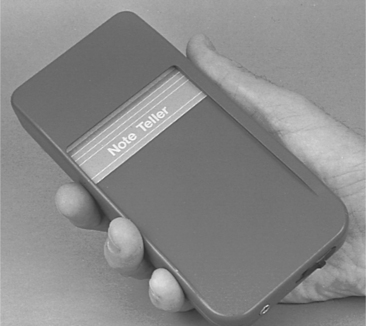
ATMs usable by both sighted persons and persons with visual impairments are available. These will eventually replace all ATMs in the United States and Canada. Worldwide usage of this technology is likely to occur in the future. Banking over the Internet is also available for persons who are blind or who have low vision. Regulations concerning ATMs are contained in the Americans with Disabilities Act Access Guidelines (http://www.access-board.gov/ada-aba/adaag/about/guide.htm#Automated). These guidelines provide performance standards for people with vision impairments. Braille instructions and control labels are used to provide nonvisual information from ATMs. For user feedback during use, audible devices and handsets are recommended to provide access while maintaining privacy. Braille output is not required. Touchscreens with appropriate software and hardware can also be made accessible to persons who are blind. The major provisions of the standards are (Trace Center, University of Wisconsin, trace.wisc.edu) differentiation of each control or operating mechanism by sound or touch, provision of opportunity for input and output privacy, marking of function keys with tactile characters, provision of both visual and audible instructions for operation, dispensing of paper currency (if available) in descending order with the lowest denomination on top, and options to receive a receipt in printed or audible form or both.
A leading cause of blindness is diabetes, and there are insulin injection devices that provide independence for blind users. Specially adapted syringes and holders for bottles are available. The holder guides the syringe into the bottle, and the syringe can be set to allow only the amount necessary for one dose to be drawn out of the bottle. Other home health care devices include thermometers with speech output and sphygmomanometers (for blood pressure measurement) that use either raised dots on the pressure meter face or synthesized speech output.
Devices for Work and School
The major needs within vocational and educational applications are for access to reading, mobility, and computers. The approaches and devices in the sections on reading and mobility in this chapter and computer access in Chapter 7 often meet these needs. To be operated as they were designed, many tools require the use of vision. It is possible to use either tactile or auditory adaptations to make these tools available to individuals who have visual impairments. A carpenter’s level with a large steel ball and center tab has an adjustment screw on one end. The screw is calibrated with half a degree of tilt corresponding to one turn. To level the device, the carpenter adjusts the screw until the ball is at the center. The user then knows how many degrees of tilt there are and can correct for the tilt. There is also a tactile tape measure with one raised dot at each quarter-inch mark, two at half-inch increments, and one large dot at each inch mark. Calipers, protractors, and micrometers use a similar labeling scheme. An audible device is used by machinists to determine depth of cut when using a lathe. There are also talking tape measures, calculators, scales, and thermometers. Many of these also have tactile versions.
Many electronic test instruments use digital (numerical) displays, which are easily interfaced to speech synthesizers. The output of the meter (e.g., a voltage measurement by a technician) is heard instead of read. Oscilloscopes are also available in both auditory and tactile forms. Electronic calculators that have speech output provide an alternative to visual display–based devices. It is possible for a person with total visual impairment to perform virtually all the tasks required for electronic or mechanical design, fabrication, and testing by using adapted tools and instruments. The Color Teller (Brytech, Ottawa, Canada, www.brytech.com/) is a hand-held device that detects colors, tints, and shades like pink, pale blue-green, dark brown, and vivid yellow. The color is spoken in English, French, or Spanish with adjustable volume. It can also be used to determine whether the lights in a room are on or off.
Devices for Play and Leisure
Almost any common board game can be obtained in enlarged form. There are also enlarged and tactually labeled playing cards, and braille or other versions exist for common board games and dice. Computer games that emphasize text rather than graphics can be used with computer screen reading software.
More active games include “beeper ball,” in which auditory signals replace visual cues. In this softball-like game, the ball contains an electronic oscillator that emits a beeping sound. The batter can aim for the sound. Bases are also labeled with sounds. Similar approaches are available for playing Frisbee, soccer, and football. In each case the object to be thrown or kicked emits a beep and goals are labeled with auditory markers. Individuals who are blind can snow ski with the assistance of both sighted guides and auditory signals from barriers such as slalom poles and fences.
SUMMARY
For persons who have low vision, it is possible to improve performance by increasing size, contrast, and spacing of the text material. Low-cost magnification aids and filters can help in this regard, but electronic aids provide much greater flexibility. Reading aids for persons who are blind rely on either tactile or auditory substitution. The most effective of these are language based (e.g., speech or braille). Fully automated reading devices are capable of imaging print documents and converting them to speech by use of voice synthesis.
ETAs for persons who are blind serve a useful but limited purpose in aiding mobility and orientation for blind travelers. Just as reading aids use alternative sensory pathways of auditory and tactile input, so do ETAs. The basic structure of a sensory aid shown in Figure 8-1 applies to ETAs as well as to reading aids. The environmental interface is either a light (laser or infrared emitter and sensor) or sound (ultrasound), and the user display is either an auditory tone or series of tones of varying frequency and amplitude or tactile vibration. The information processor converts the reflected light or ultrasound information to the audible or tactile display information presented to the user. Current technology provides only limited substitution or augmentation for the long cane. Future developments will most likely be in the extraction of useful features from the visual image for display to the blind traveler (see Adjouadi, 1992, for example). By concentrating on achieving input that is more informative regarding obstacles and the orientation and location of objects in the environment, the utility of these devices will be greatly enhanced. Electronic aids that assist blind travelers with orientation are also available; some make use of GPS information.
1. What are the two basic approaches to sensory aids in terms of the sensory pathway used?
2. List the three basic parts of a sensory aid and describe the function of each part. Pick one example from visual aids, one from auditory aids, and one from tactile aids and describe the three parts that make up each aid.
3. Compare the visual, auditory, and tactile systems in terms of their basic function and as substitutes for each other.
4. What are the three types of scanners used in reading machines, and how do they differ?
5. What is an OCR, and what function does it perform in a reading machine for the blind?
6. List three output modes available for reading machines.
7. Computer disks or CD-ROMs with text stored on them can be used to provide access to reading material for persons who are blind. What components (e.g., adapted output devices) must be included in such devices, and what role does the computer play?
8. What is a GUI? What advantages does it provide for persons with disabilities?
9. What special problems does the GUI present for persons who are blind?
10. What are the features included in Universal Access and Windows Accessibility options that assist individuals who have low vision or blindness?
11. List three limitations of current voice-only screen reading programs developed for visual access.
12. What are the three factors that must be considered when accommodating for low vision? How are they normally dealt with in access software?
13. Describe the relative advantages and disadvantages of software and hardware approaches to obtaining enlarged displays for persons with visual impairments.
14. How is magnification defined for a screen-enlarging program?
15. What are the three modes used in screen magnification software?
16. What is meant by focus in a screen magnification program?
17. What is the primary tactile method used for computer output?
18. What are the three approaches to using nonspeech sound for representing GUIs?
20. What are the attributes of an earcon, and how are they used to portray graphical information?
21. What are the two major types of hearcons? How are they used to represent visual components of the GUI?
22. What is the difference between an earcon and a hearcon?
23. What special adaptations are made to braille specifically for computer output use?
24. What adaptations are made to provide hard copy for users with low vision?
25. What adaptations are made to provide hard copy for users who are blind?
26. Define scrolling as applied to screen reader programs.
27. What does the term navigation mean in describing a screen magnification or screen-reading program?
28. Describe the major benefits of computer use reported by individuals who are blind or who have low vision.
29. What are the major barriers to computer use reported by individuals who are blind or who have low vision?
30. What are the primary challenges in obtaining Web access for persons who have disabilities?
32. What is a user agent? What are typical user agents for persons with disabilities? What guidelines are used to ensure that a user agent is accessible?
33. How are Web pages developed, and what steps are necessary to ensure that they are usable by persons with disabilities?
34. What is a Web browser? What features are necessary in a Web browser to ensure that people who have disabilities can use it?
35. List the major features of accessible Web sites. What tools are typically used to test accessibility of Web sites?
36. What are the major differences in the effects of errors in reading and in mobility devices?
37. What are the major limitations of the long cane for use as a mobility aid by persons who are blind?
38. What is an electronic travel aid?
39. List three advantages and three disadvantages of the laser cane.
40. What is a clear path indicator, and how is it used in mobility for people who are blind?
41. What are the major assistive technologies applied to orientation for people who are blind?
42. Pick a tool or measurement instrument and figure out how to adapt it for both a person with low vision and one who is blind.
References
Adjouadi, M. A man-machine vision interface for sensing the environment. J Rehabil Res Dev. 1992;29:57–76.
Allen, J. Reading aids for the severely visually handicapped. CRC Crit Rev Bioeng. 1971;12:139–166.
American Foundation for the Blind. How does a blind person get around? New York: The Foundation, 1978.
Baldwin, D. Wayfinding technology: a roadmap to the future. J Vis Impair Blindness. 2003;97:612–620.
Blenkhorn, P, Gareth, D, Baude, A. Full-screen magnification for Windows using directx overlays. IEEE Trans Neural Syst Rehabil Eng. 2002;10:225–231.
Boyd, LH, Boyd, WL, Vanderheiden, GC. The graphical user interface: crisis, danger, and opportunity. J Vis Impair Blindness. 1990;84:496–502.
Converso, L, Hocek, S. Optical character recognition. J Vis Impair Blindness. 1990;84:507–509.
Cook, AM. Sensory and communication aids. In: Cook AM, Webster JG, eds. Therapeutic medical devices. Englewood Cliffs, NJ: Prentice-Hall, 1982.
Crabb, N. Mastering the code to independence. Braille Forum. 1998;June:24–27.
Dixon, JM, Mandelbaum, JB. Reading through technology: evolving methods and opportunities for print-handicapped individuals. J Vis Impair Blindness. 1990;84:493–496.
Doherty, JE. Protocols for choosing low vision devices. Washington, DC: National Institute on Disability and Rehabilitation Research, 1993.
Farmer, LW. Mobility devices. Bull Prosthet Res. 1978;30:41–118.
Fruchterman, JR. Reading systems for the visually and reading impaired. In Proc 1991 CSUN Conference. Northridge, CA: California State University, Northridge; 1991.
Fruchterman, JR. In the palm of your hand: a vision of the future of technology for people with visual impairments. J Vis Impair Blindness. 2003;97:585–591.
Gerber, E. The benefits of and barriers to computer use for individuals who are visually impaired. J Vis Impair Blindness. 2003;97:536–550.
Gerber, E, Kirchner, C. Who’s surfing? Internet access and computer use by visually impaired youth and adults. J Vis Impair Blindness. 2001;95:176–181.
Golledge, RG, et al. Stated preference for components of a personal guidance system for nonvisual navigations. J Vis Impair Blindness. 2004;98:135–147.
Griffin, HG, et al. Using technology to enhance cues for children with low vision. Teaching Except Child. 2002;35:36–42.
Grotta, D, Grotta, SW. Desktop scanners: what’s now…what’s next. PC Mag. 1998;17:147–188.
Hayes, F. From TTY to VDT. Byte. 1990;15:205–211.
Hill, J, Black, J. The Miniguide: a new electronic travel device. J Vis Impair Blindness. 2003;97:655–658.
Huber MJ, Simpson R: Recognizing the plans of screen reader users: Proceedings of the AAMAS 2004 workshop on modeling and other agents from observation (MOO 2004), New York NY: www.marcush.net/irs_papers.html. Accessed March 8, 2006.
Johnson E, Korn P, Walker W: A primer on the Java platform and Java accessibility: Proceedings of the CSUN conference (1999): (http://www.dinf.org/csun_99/session0193.html).
Kerscher G, Hansson K: Consortium—Developing the next generation of digital talking books (DTB): Proceedings of the CSUN conference (1998): (http://www.dinf.org/csun_98_065.htm).
Kirman, JH. Tactile communication of speech: a review and analysis. Psychol Bull. 1973;80:54–74.
Lazzaro, JL. Helping the web help the disabled. IEEE Spectrum. 1999;36:54–59.
Loomis, JM, et al. Personal guidance system for peoples with visual impairment: a comparison of spatial displays for route guidance. J Vis Impair Blindness. 2005;99:219–232.
Ma L et al: Effective computer access using an intelligent screen reader, Proc 26th RESNA Conf, Atlanta, Rehabilitation Engineering and Assistive Technology Society of North America, 2004.
Mann, RW. Technology and human rehabilitation: prostheses for sensory rehabilitation and/or substitution. In: Brown JHU, Dickson JF, eds. Advances in biomedical engineering. New York: Academic Press, 1974.
Mellor, CM. Aids for the ’80s. New York: American Foundation for the Blind, 1981.
Nagarajan, R, Yaacob, S, Sainarayanan, G. Computer aided vision assistance for human blind. Integrated Computer-sided Eng. 2004;11:15–24.
Nye, PW, Bliss, JC. Sensory aids for the blind: a challenging problem with lessons for the future. Proc IEEE. 1970;58:1878–1879.
Owen, MJ. Close encounters of a technological kind: a personal transformation. J Vis Impair Blindness. 1990;84:491–492.
Ratanasit, D, Moore, M. Representing graphical user interfaces with sound: a review of approaches. J Vis Impair Blindness. 2005;99:69–93.
Ross, DA, Henderson, VL. Cyber crumbs: an indoor orientation and wayfinding infrastructure: Proceedings of the 28th annual RESNA conference. http://www.resna.org/ProfResources/Publications/Proceedings/2005/Research/TCS/Ross.php. [Accessed November 26, 2005.].
Scadden, LA. Technology for people with visual impairments: a 1997 update. Technol Dis. 1997;6:137–145.
Servais, SP. Visual aids. In: Webster JG, et al, eds. Electronic devices for rehabilitation. New York: John Wiley, 1985.
Skellenger, A. Trends in the use of alternative mobility devices. J Vis Impair Blindness. 1999;93:516–521.
Smith, GC. The Stereotoner—a new sensory aid for the blind. Proc Annu Conf Eng Med Biol. 1972;14:147.
Stelmack, JA, et al. Patient’s perceptions of the need for low vision devices. J Vis Impair Blindness. 2003;97:521–535.
Tobias, J. Information technology and universal design: an agenda for accessible technology. J Vis Impair Blindness. 2003;97:592–601.
Vanderheiden, GC. Cross-modal access to current and next-generation Internet—fundamental and advanced topics in Internet accessibility. Technol Disabil. 1998;8:115–126.
Vanderheiden GC, Chisholm W: The ongoing evolution of the WAI authoring guidelines: Proceedings of the 1999 CSUN conference (http://www.dinf.org/csun_99/session0094.html).
Walker, BN, Lindsay, J. Using virtual environments to prototype auditory navigation displays. Assist Technol. 2005;17:72–81.
Wolfe, KE. Wired to work: an analysis of access technology training for people with visual impairments. J Vis Impair Blindness. 2003;97:633–645.
Wolfe, KE, Candela, T, Johnson, G. Wired to work: a qualitative analysis of assistive technology training for people with visual impairments. J Vis Impair Blindness. 2003;97:677–694.
Zelek, JS, et al. A haptic glove as a tactile-vision sensory substitution for wayfinding. J Vis Impair Blindness. 2003;97:621–632.